How to Upgrade/Downgrade Your audienced Subscription
In Audienced, you can change your plan (Starter / Grow / Scale) at any time directly from the dashboard. The change is applied without losing any data or settings.
Where to change your plan
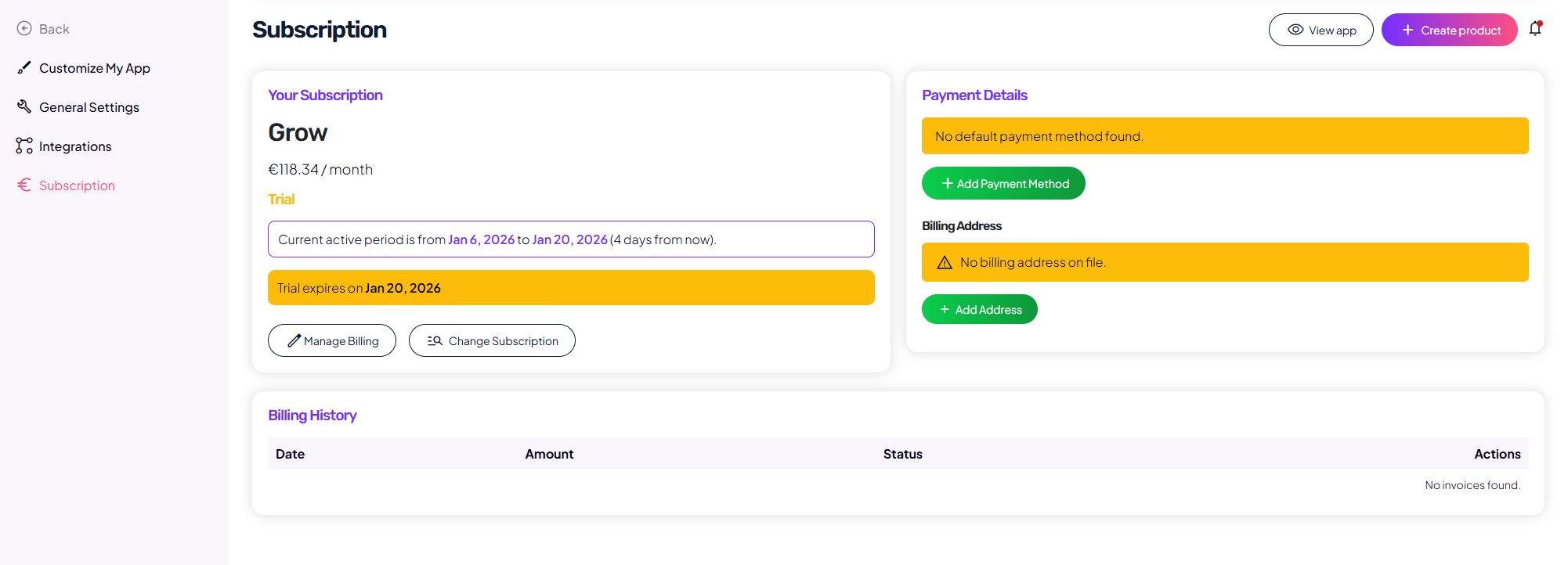
In the admin dashboard, go to:
Subscription → Change subscription
On this page, you can see:
- your currently active plan,
- available plans,
- the option to select a billing period.
How the plan change works
- Click Change subscription.
- Select the desired plan (Starter, Grow, or Scale).
- If needed, choose:
- monthly or
- yearly billing.
- Confirm the change.
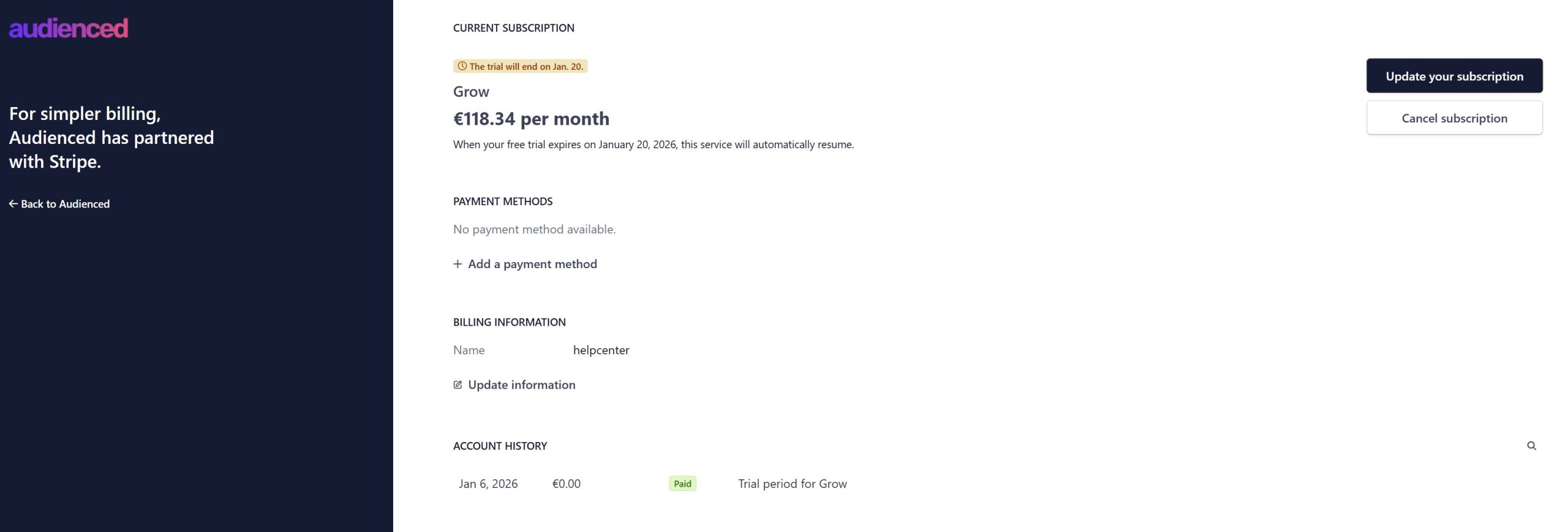
After confirmation, the plan is updated according to your billing cycle.
When the change takes effect
Upgrade to a higher plan
The change usually takes effect immediately, with the price difference billed accordingly.
Downgrade to a lower plan
The change is typically applied at the start of the next billing period.
The exact effective date is visible in the Subscription section.
Impact on data and content
Changing your plan:
- does not delete existing products, content, or users,
- keeps all settings and history intact,
- only affects available limits and features based on the selected plan.
If you exceed allowed limits after downgrading, the platform will clearly indicate this.
Changing the billing period
When changing your plan (or separately), you can also:
- switch between monthly and yearly billing.
Yearly billing is more cost-effective and is charged once per year.
When a change is not possible
If:
- no payment method is added, or
- billing details are missing,
the system will prompt you to complete the required information before allowing a plan change.
Summary
- you can change your plan in the Subscription section,
- upgrades and downgrades take effect at different times,
- all data and content remain preserved,
- you can also change the billing period.