Dashboard overview (admin view)
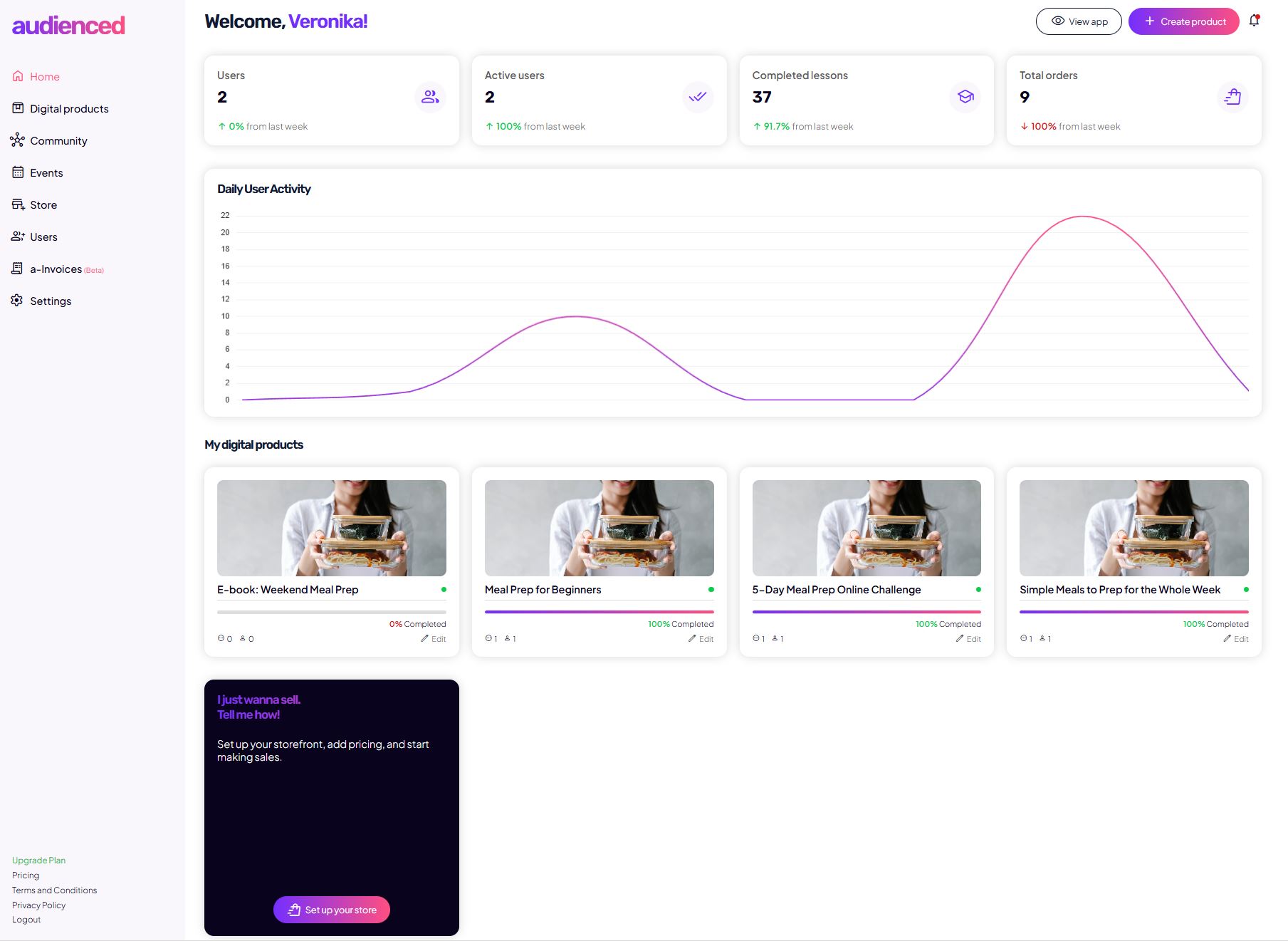
The admin dashboard (admin view) is the management area of the Audienced platform, intended for creators, businesses, and teams who manage digital products, communities, and users.
In this view, you can:
- configure the application,
- create and manage content,
- manage subscriptions and billing,
- control user access.
The admin view is not the same as the user view, which is what your members see.
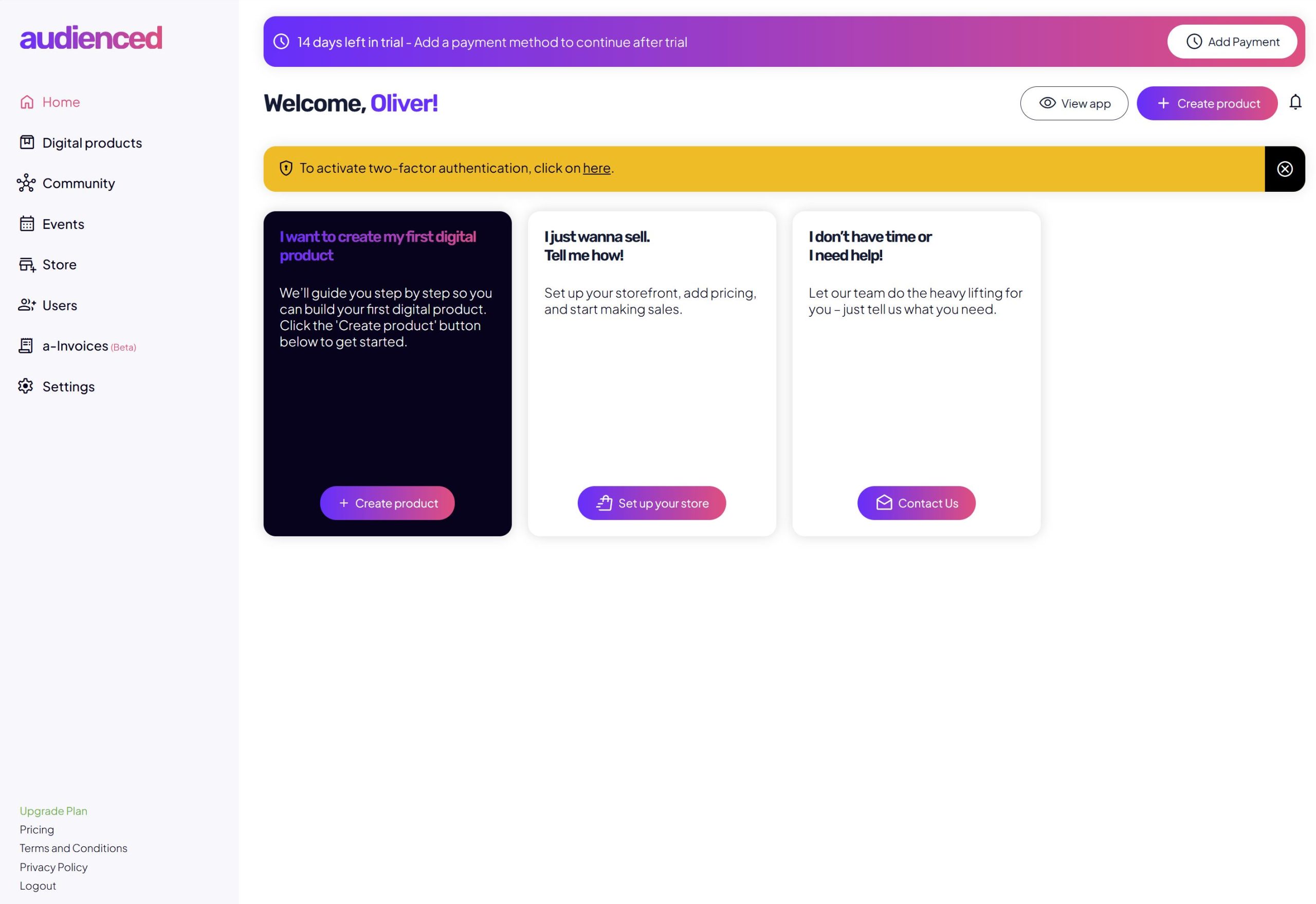
What you see after your first login
After logging into Audienced for the first time, you will see:
- a welcome screen,
- informational notices (e.g. trial, payment, security),
- quick-start steps (creating a product, setting up the store, booking help).
This screen is designed for orientation and onboarding, not for daily management.
Main navigation menu (left side)
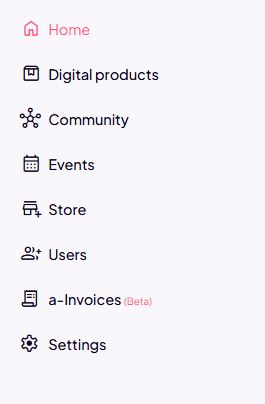
The left menu is the primary navigation of the admin interface. Each section has a clear purpose:
Home
- overview dashboard,
- notifications and quick links,
- recommended actions to get started.
Digital products
- create and edit courses, challenges, and other digital products,
- manage content and structure.
Community
- manage the community,
- posts, spaces, and user interactions.
Events
- manage events and the calendar.
Website
- basic pages and presentation sections of the app,
- content visible to users before or after login.
Users
- view and manage users,
- roles, access levels, and statuses.
e-Invoices (beta)
- invoice creation,
- automatic invoice delivery,
- tax validation of invoices,
- financial overview (feature in development).
Settings
- application personalization,
- emails, terms, domain,
- integrations and subscription.
Top bar (status and quick actions)
The top section of the admin interface always shows:
- trial or subscription status,
- the Add payment button (if required),
- the View app button (switch to user view),
- the + Create button for quick content creation,
- notifications.
This bar provides a quick overview of the account and application status.
Difference between admin view and user view
It is important to understand the difference:
Admin view
- visible to you as the administrator,
- where you configure and build the application,
- where subscriptions and access are managed.
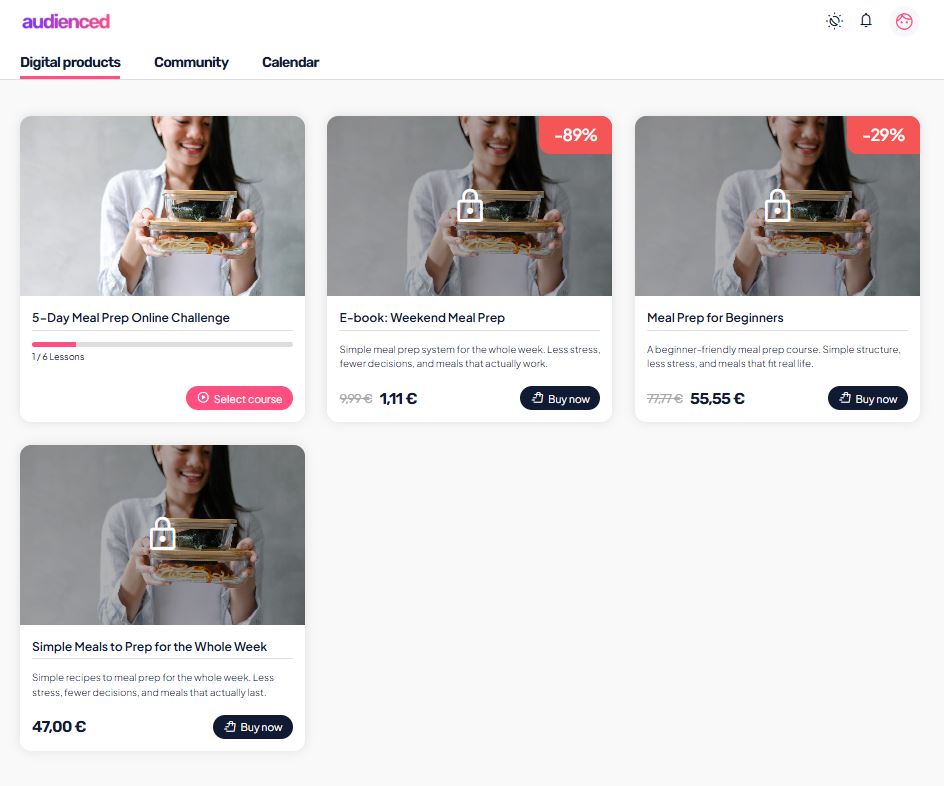
User view
- visible to your users (members),
- where they access content,
- where user-level settings apply.
The admin view is not the same as the user view.
What admins do not manage in this view
In the admin view:
- you do not set light/dark mode (this is a user setting),
- you do not see the end-user experience 1:1,
- you do not manage users’ personal settings.
To understand the user experience, use the user view.
How to proceed after reviewing the dashboard
Once you understand the structure of the admin interface, the next logical steps are:
- configure the application (logo, colors, emails),
- connect payments,
- create your first products.
You can find these steps in the separate article What to do after signing up.
Summary
- the admin view is the management area of Audienced,
- it is intended for creators and administrators,
- it contains all settings, products, and users,
- it differs from the user view,
- understanding the structure saves time and prevents mistakes.
This article serves as an orientation guide to the Audienced admin dashboard (admin view).
For understanding the user experience, also see the article User interface overview (user view).