Video and Media Library
The Video Library and Media Library in Audienced are the central place for managing all video and file-based content used in your digital products (courses, challenges, lessons).
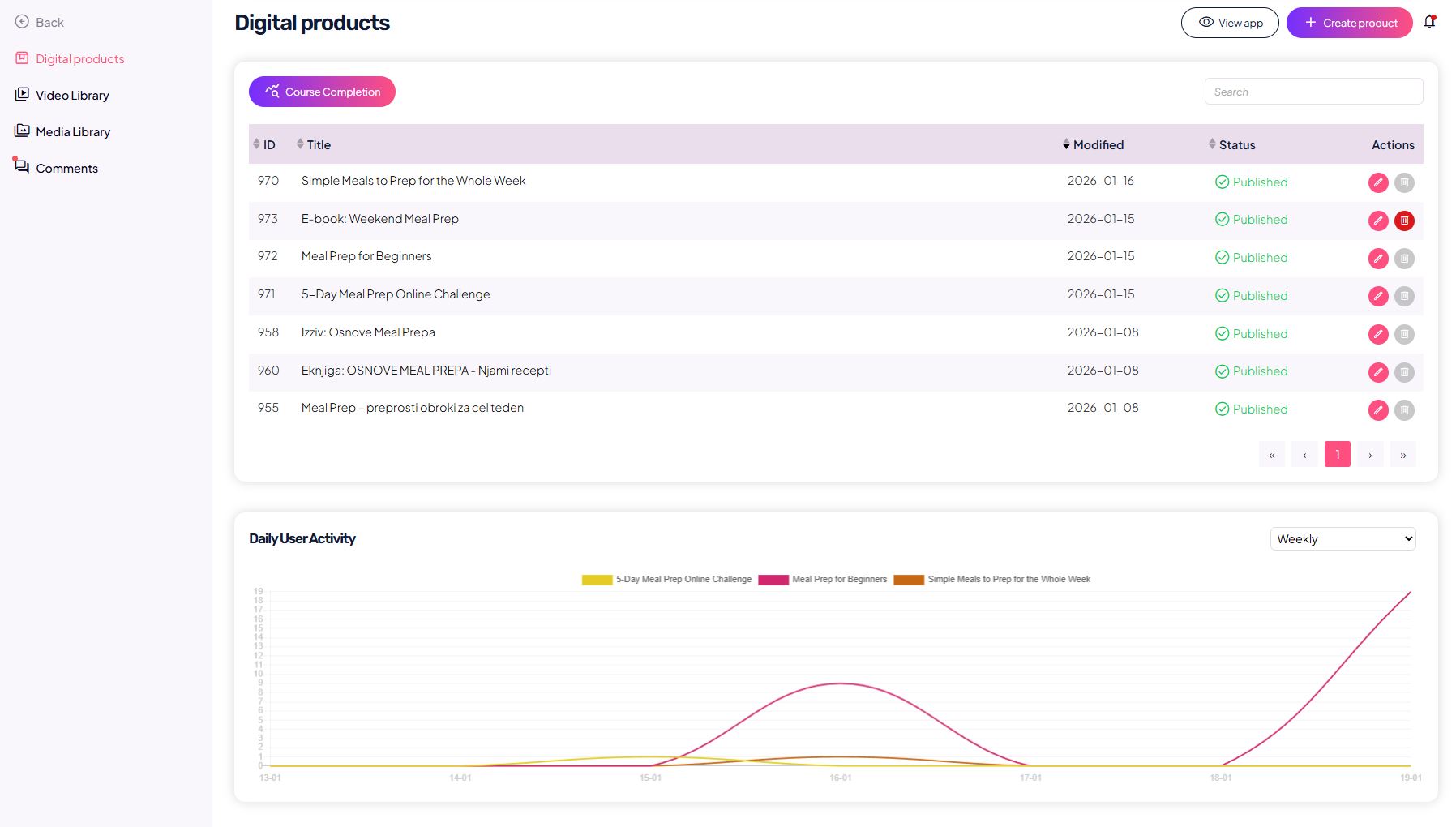
They are designed to help you:
- keep all content organized in one place,
- reuse videos and files across multiple lessons,
- maintain a clear overview of where each piece of content is used.
Video Library
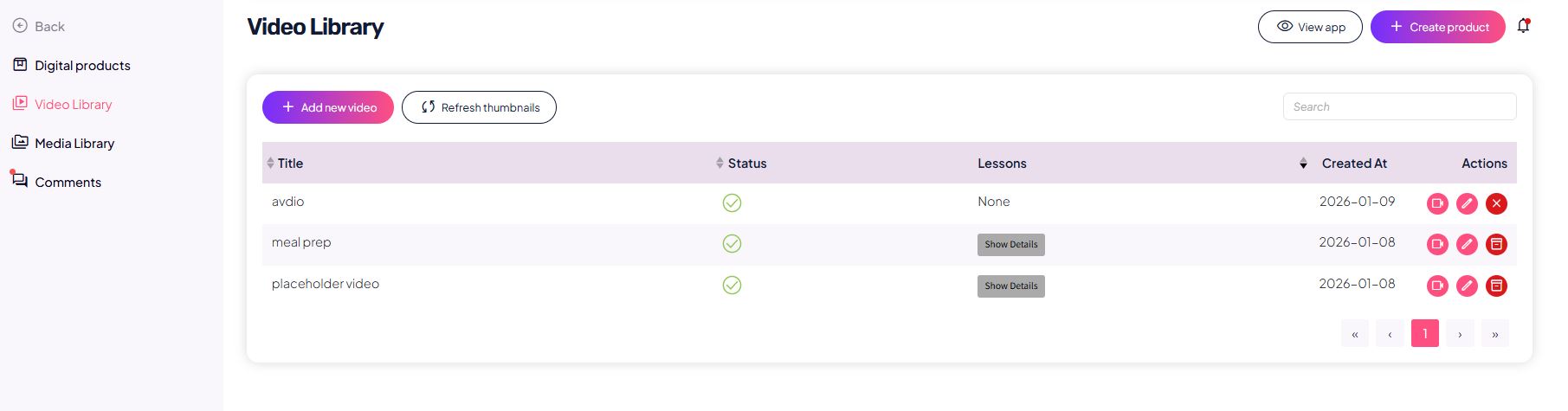
The Video Library contains all videos used in your lessons.
Adding a video
You can add a new video in two ways:
- Upload file
– upload a video file (up to 2 GB), - Via link
– add a video URL (e.g. Bunny, Vimeo, YouTube embed).
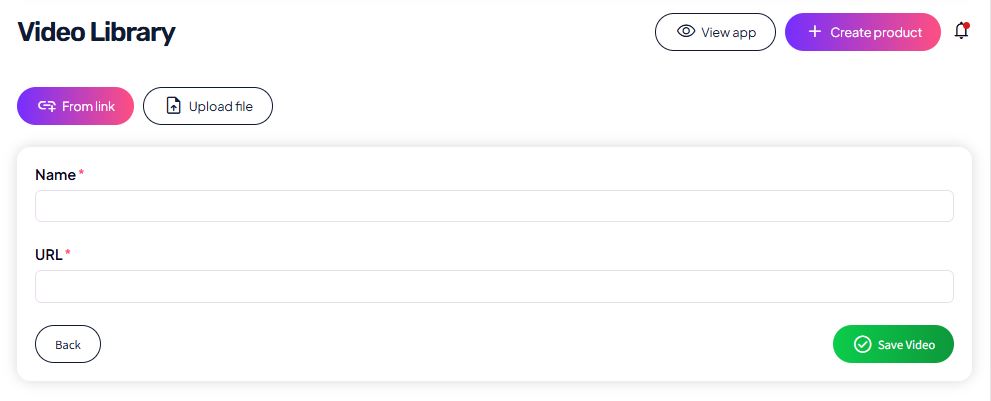
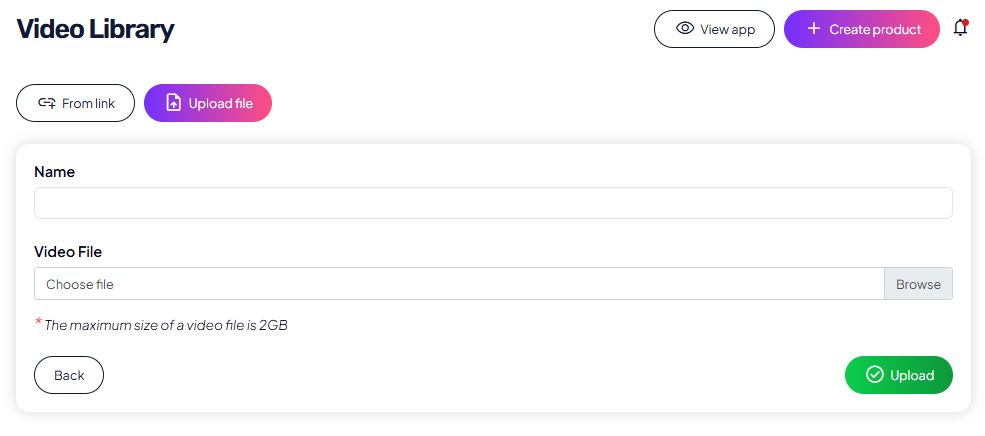
When adding a video, you define:
- the video name (internal name for easier organization),
- the video source (file upload or link).
Once added, the video becomes available for use in all lessons.
Video overview and usage
In the Video Library, you can see:
- a list of all videos,
- video status,
- which lessons use a specific video,
- the creation date.
You can:
- use the same video in multiple lessons,
- replace or edit it without re-uploading,
- delete it (if it is no longer in use).
This enables fast editing and consistent content management.
Media Library
The Media Library is used to manage PDFs and other files that you include in lessons or provide as additional materials.
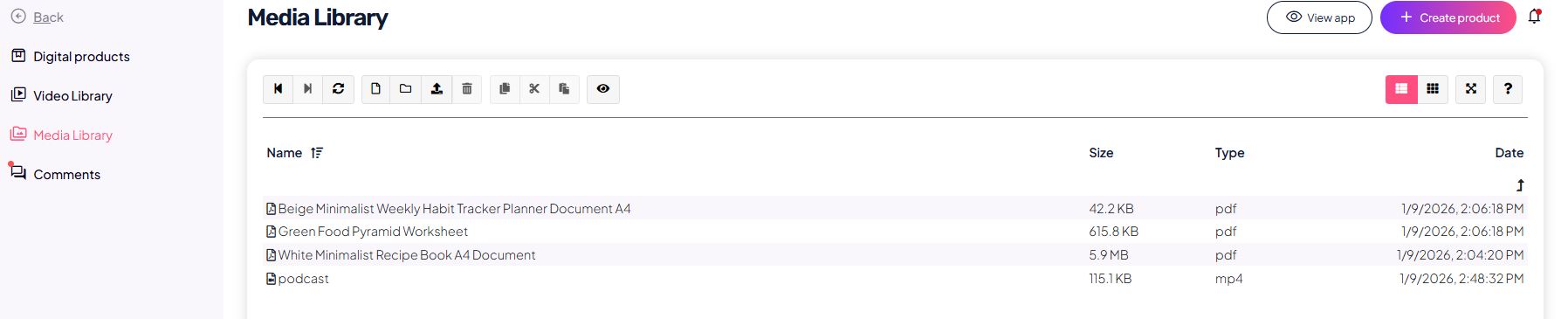
In the Media Library, you can:
- upload PDF files,
- manage existing files,
- reuse the same files across multiple lessons or products.
Files from the Media Library can be used in lessons to:
- display content directly within the platform,
- or allow file download (depending on lesson settings).
Connection with lessons
When creating or editing a lesson:
- you select a video directly from the Video Library,
- you add PDFs from the Media Library.
This means:
- no duplicate content,
- no repeated uploads of the same files,
- a clearer overview of your entire content system.
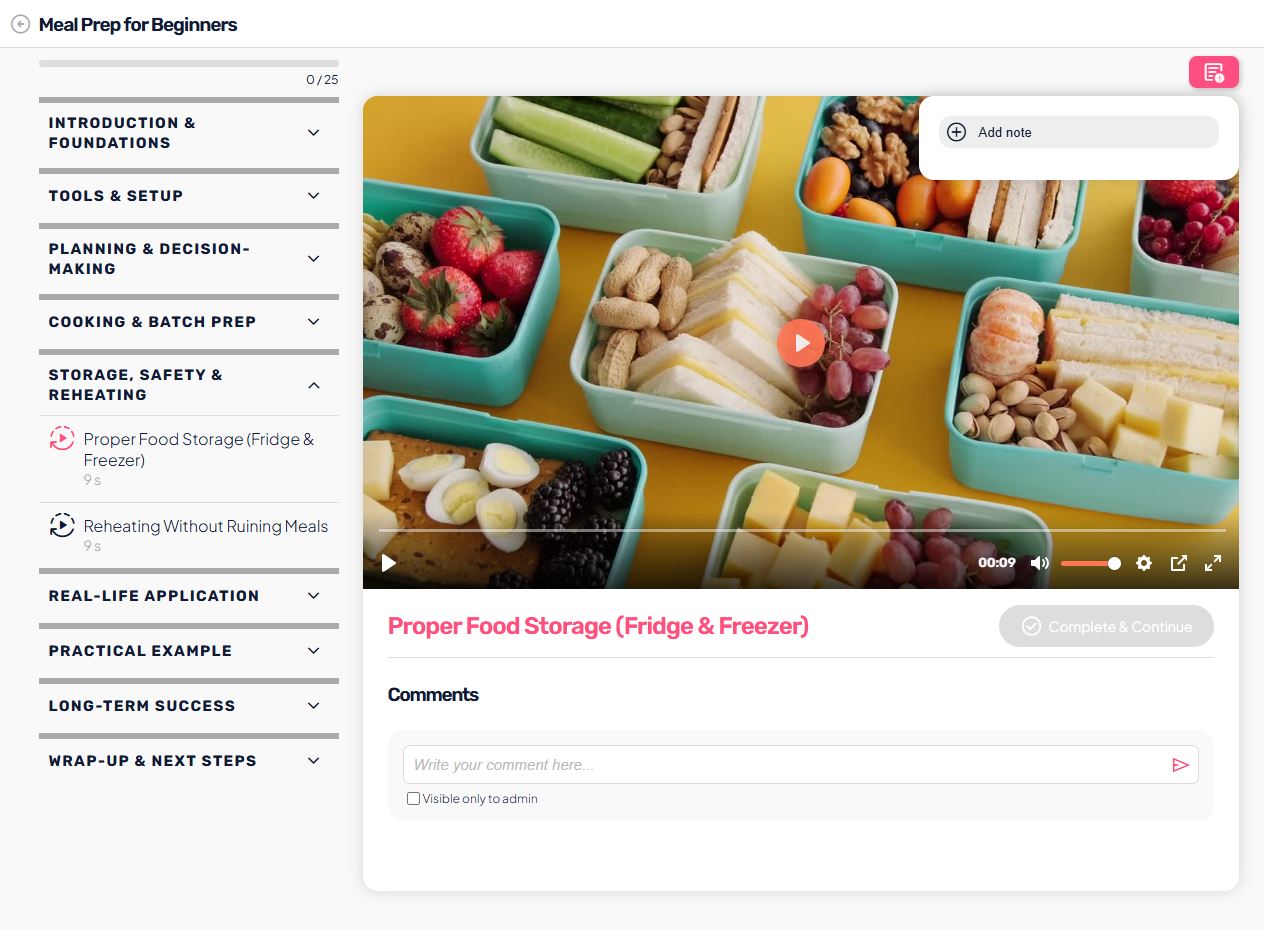
User view
The user:
- sees videos directly inside the lesson,
- has no access to the Video or Media Library,
- only sees content that you included in lessons,
- does not see internal names, statuses, or lesson links.
Videos and files are presented to users as part of a unified, professional course or challenge experience.