Survey
A lesson with a survey is designed to collect user feedback, opinions, and ratings. You can use it at the end of a course, module, or challenge to measure satisfaction, check content understanding, or gather ideas for future content.
The survey is interactive, easy to complete, and can be completely anonymous.
How to create a survey
- In the Modules and lessons section, click the Add lesson button within the selected module.
- Select the lesson type Survey.
- Continue to editing the survey and questions.
Survey settings
When creating a survey, you set the following elements:
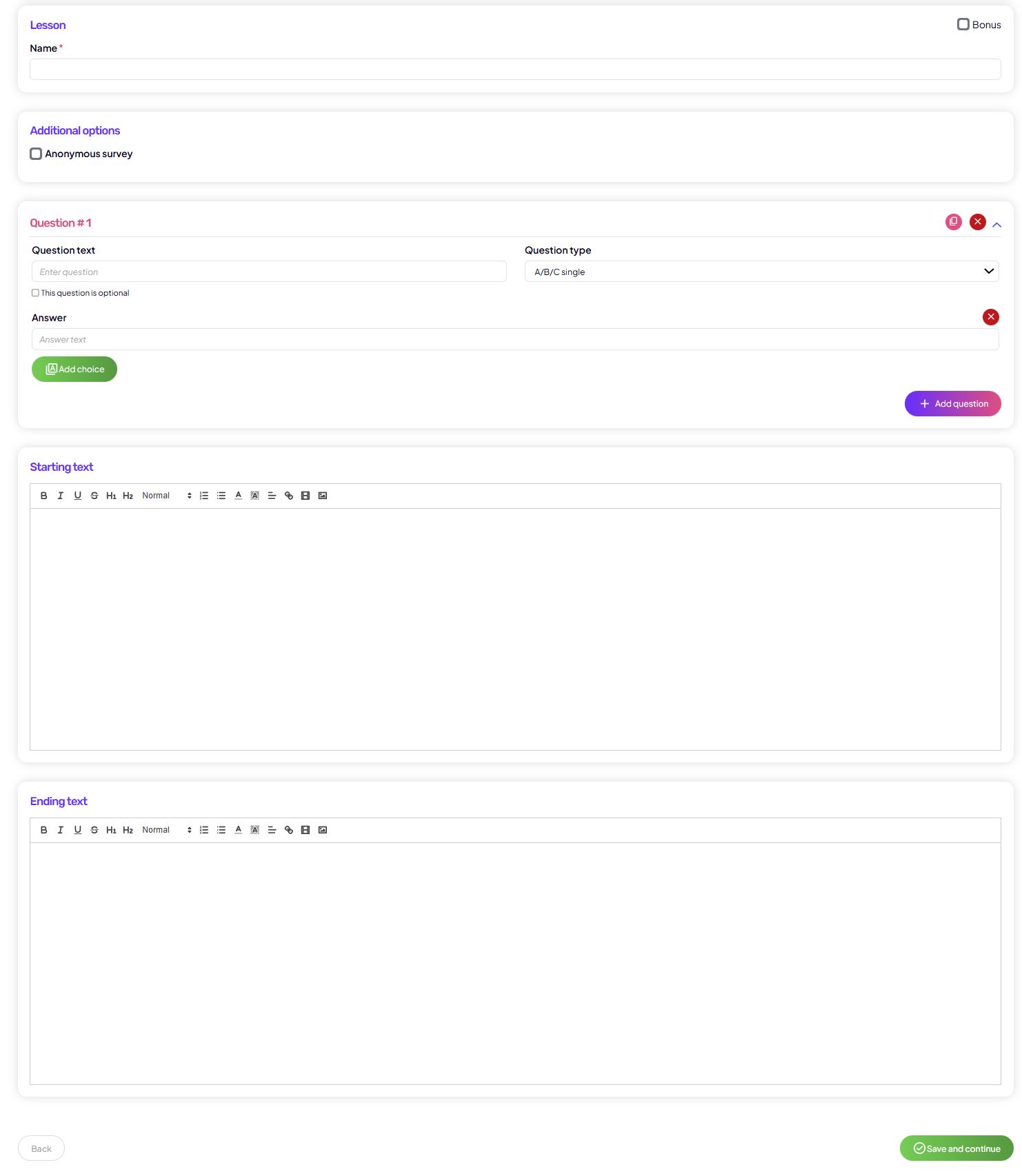
Basic details
Lesson title
The survey title users see in the module structure (e.g. Survey – your feedback).
Bonus (optional)
You can mark the survey as bonus content.
Additional options
Anonymous survey
If the option is enabled:
- answers are not linked to a user account,
- users feel more relaxed when giving honest feedback.
If it is disabled:
- you can see who submitted the response,
- useful for mentorships or smaller groups.
Survey questions
You can add any number of questions to a survey. For each question, you can:
- edit,
- duplicate,
- delete,
- mark it as required or optional.
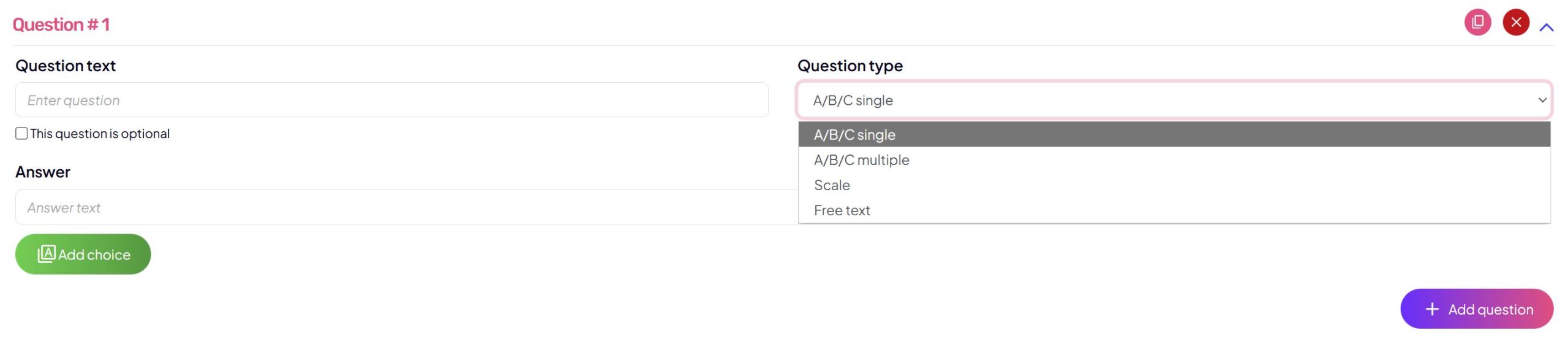
Question types
You have several question types available:
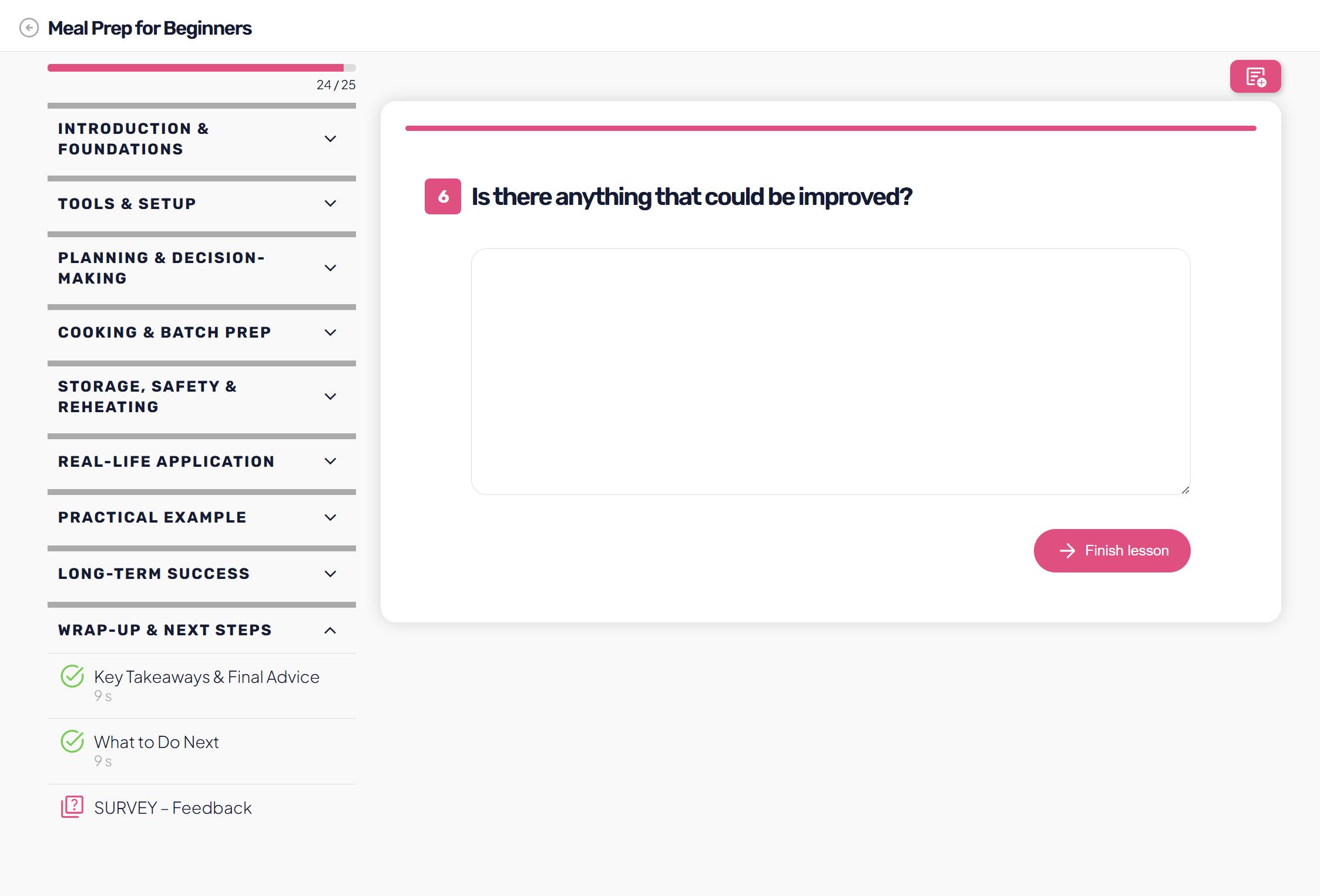
- A/B/C – single answer
The user selects one option. - A/B/C – multiple answers
The user can select multiple options. - Scale
Suitable for ratings (e.g. 1–3 or 1–8). - Free text
The user types their answer (comment, suggestion, opinion).
This allows you to combine quantitative and qualitative answers.
Intro and completion text
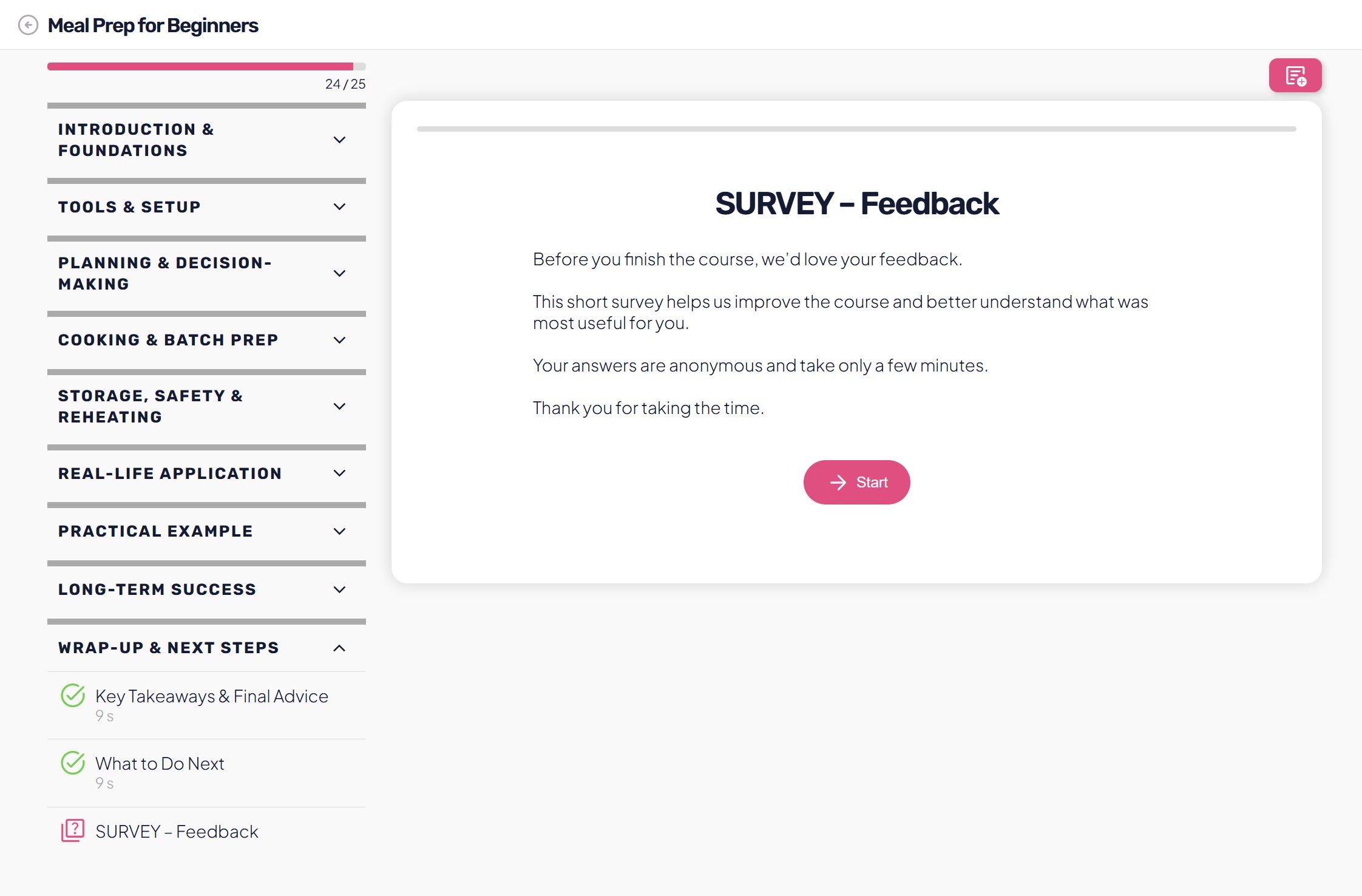
Intro text
In the Intro text section, write an introduction that appears to the user before the survey begins.
Examples of use:
- explain why the survey is important,
- highlight that it is short and anonymous,
- motivate users to complete it.
Completion text
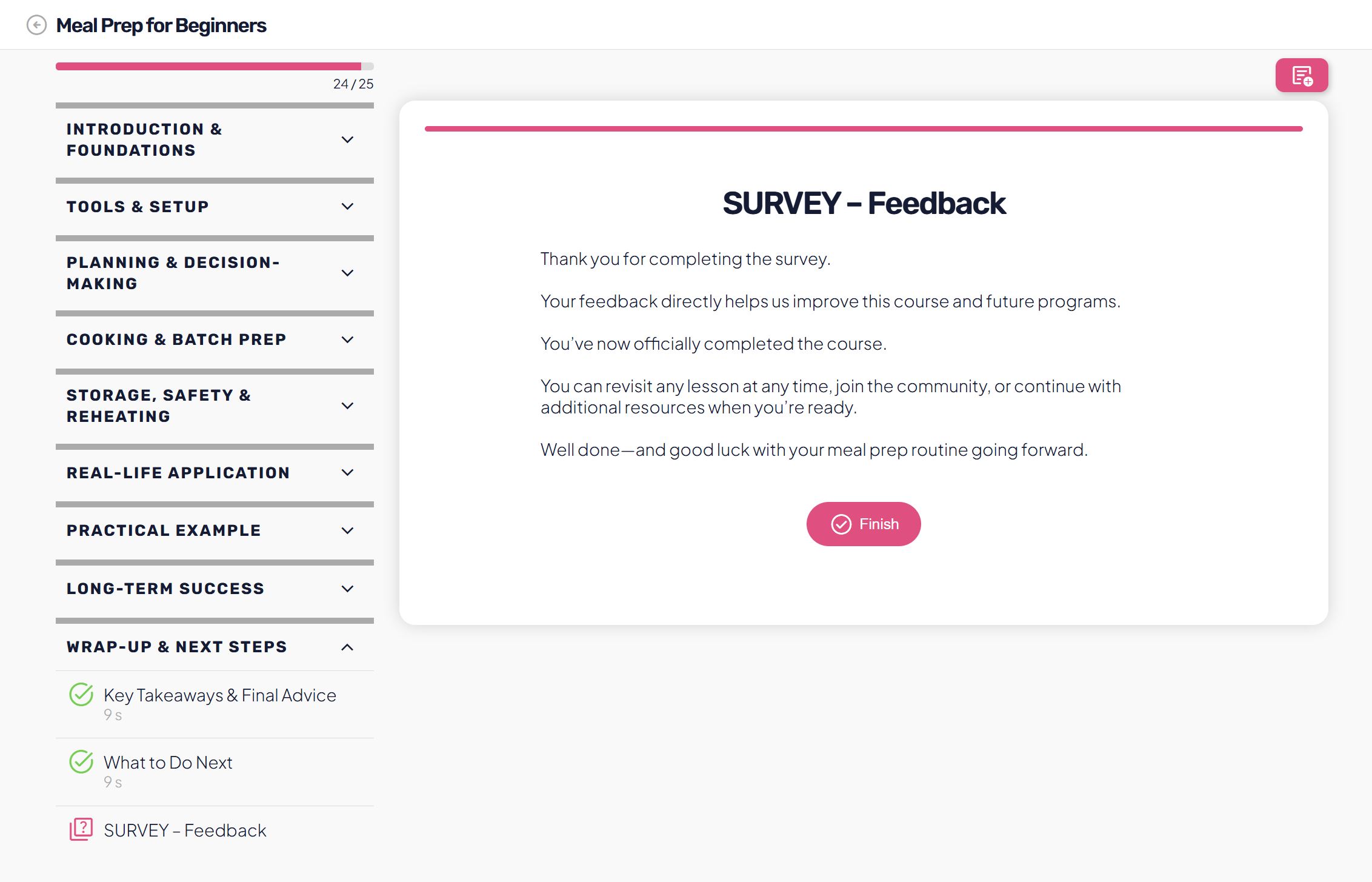
In the Completion text section, set the message that appears after the survey is submitted.
Examples of use:
- thank the user for participating,
- notify them that the course is completed,
- invite them to a community or to next steps.
User progression
A survey lesson can be marked as required.
- the user must complete the survey in order to finish the lesson,
- completion happens by clicking Complete lesson,
- the survey is often the final step of a course or challenge.
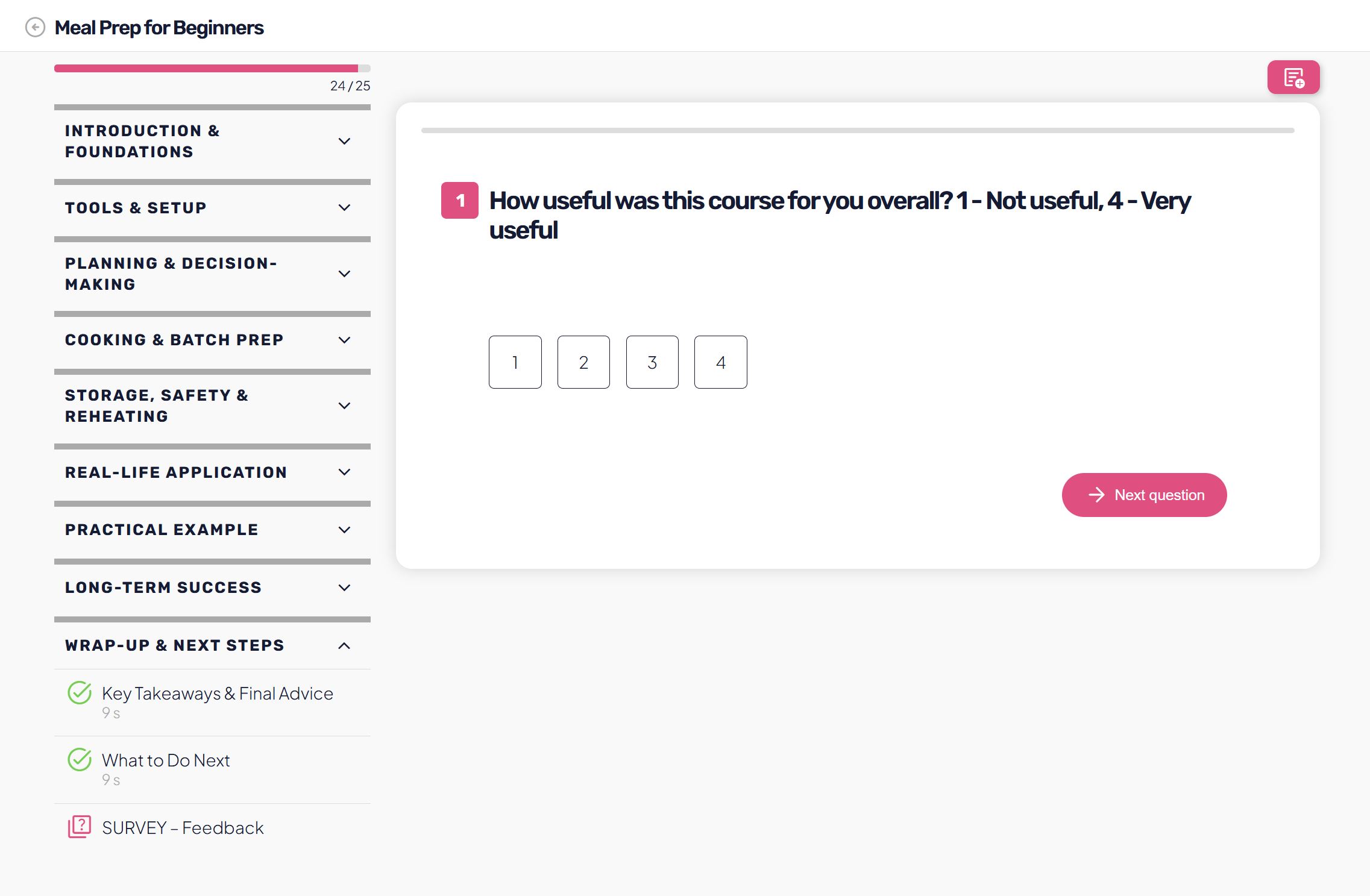
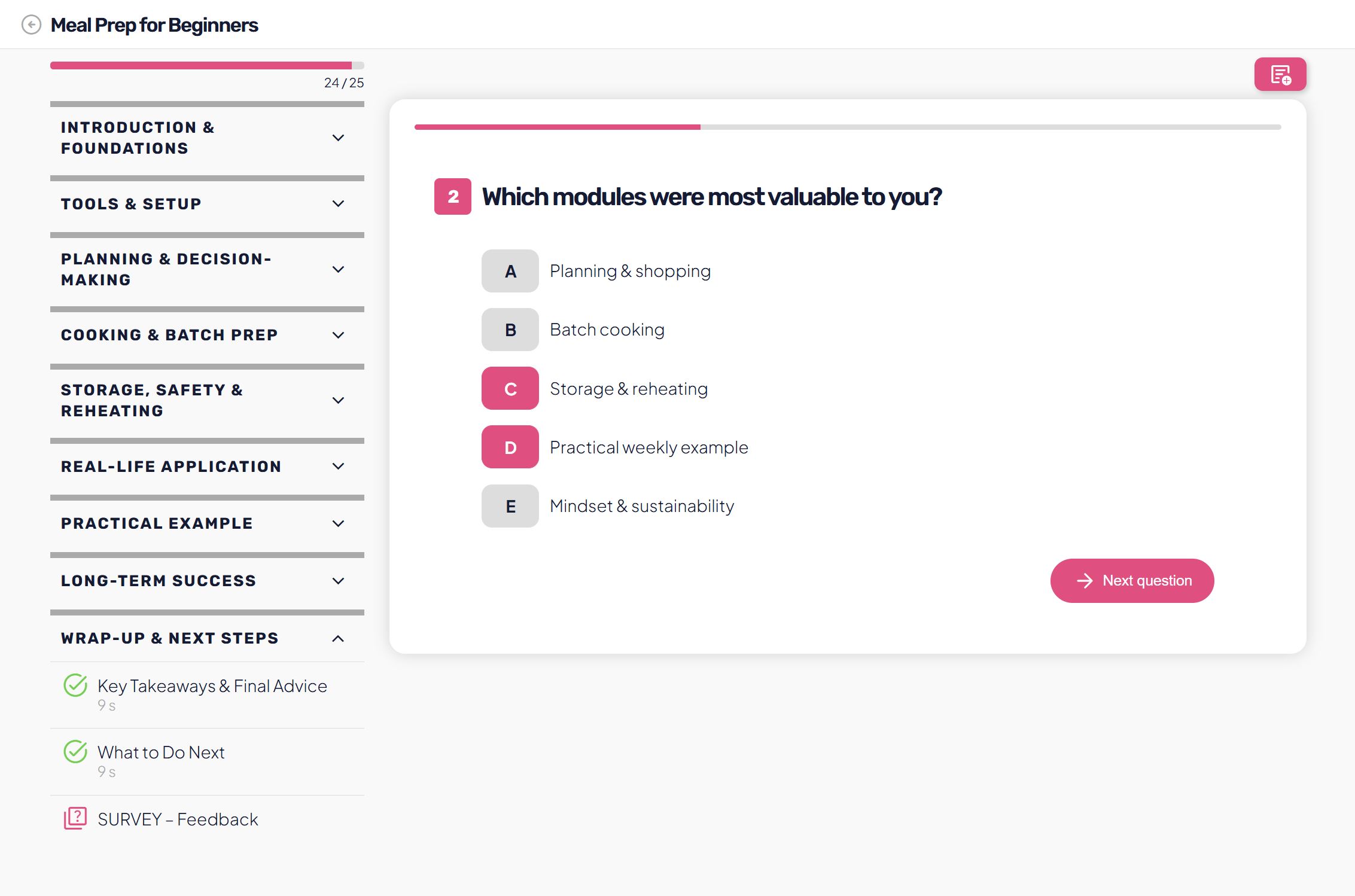
User view
Once the survey is published:
- the user sees clearly structured questions,
- progressing through the questions is simple and clear,
- they can see how many questions are left,
- after finishing, they receive the completion message.
This allows the admin to verify whether the survey is clear, short enough, and user-friendly to complete.
Survey results (Admin view)
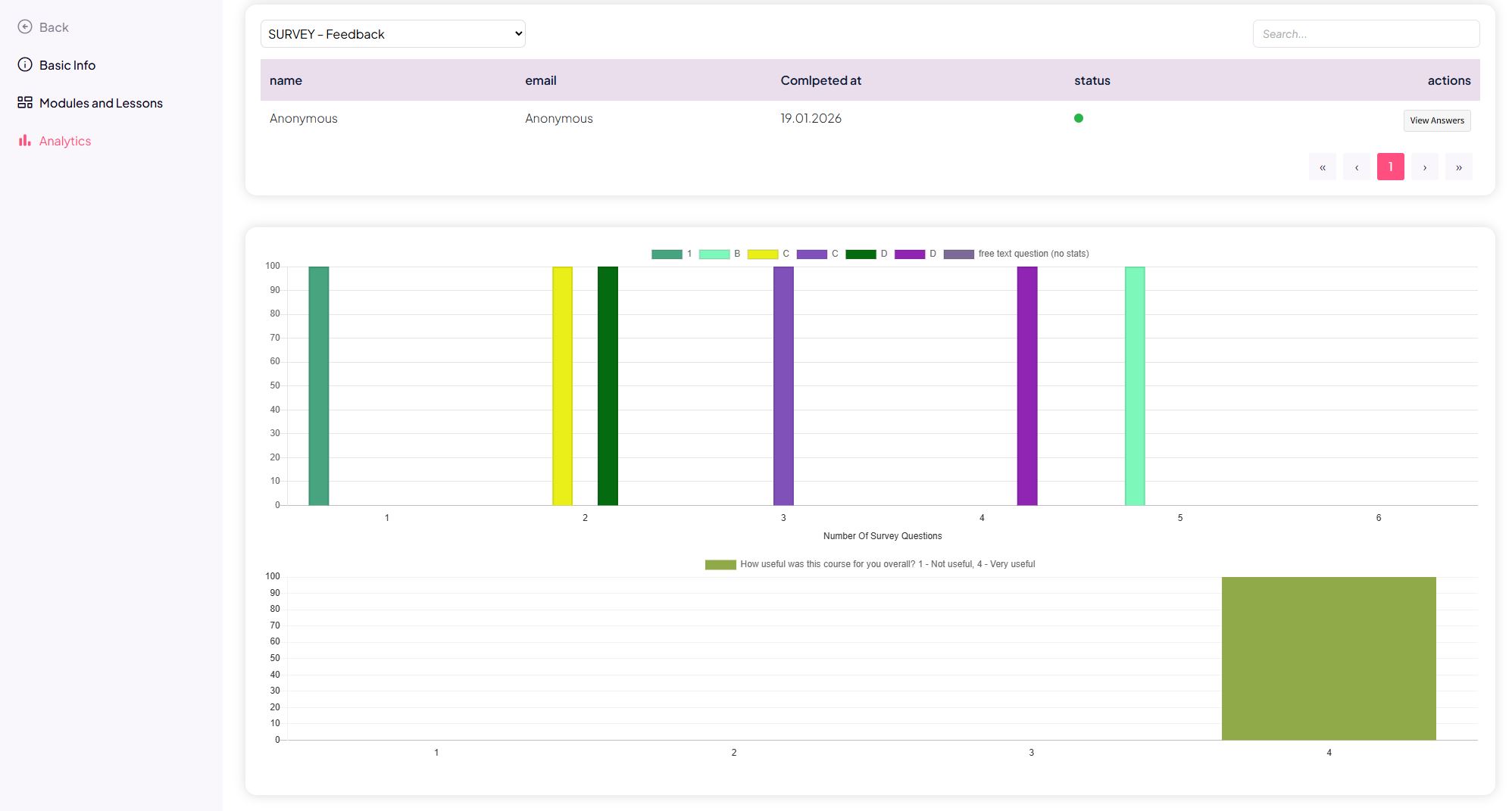
When users complete the survey, as an admin you can access the results in the Analytics section.
What you see in analytics
- a list of completed surveys,
- status (completed / not completed),
- whether the survey is anonymous or not,
- individual answers by question.
Statistics and charts
For closed questions (A/B/C, scale), audienced automatically displays:
- answer distribution,
- percentages by selection,
- visual charts for a quick overview of trends.
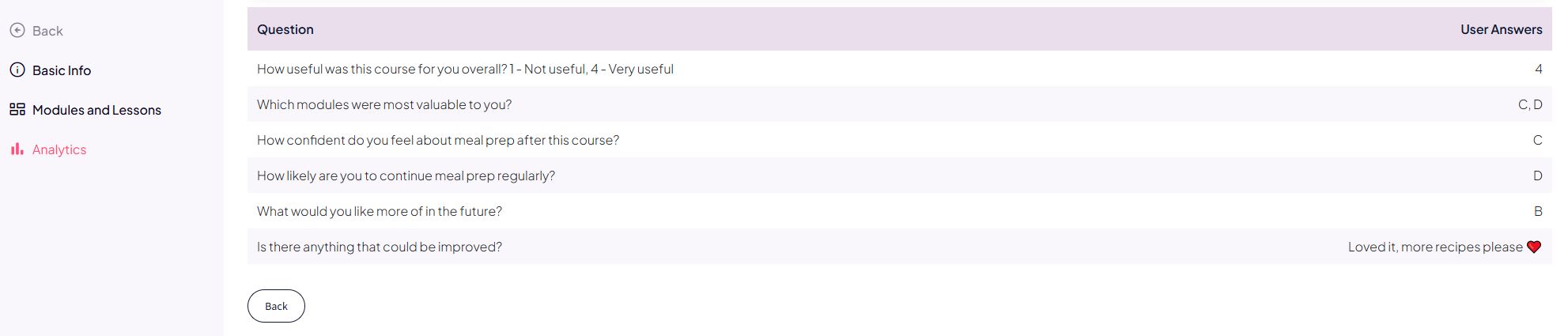
For open questions, you see:
- the full written feedback from users,
- all responses collected in one place.
Why survey results matter
With survey analytics, you can:
- identify which parts of the course are most useful,
- spot content that needs improvement,
- collect ideas for new products or modules,
- use anonymous praise as social proof.
When to use a survey
A survey is a great choice when you want to:
- wrap up a course or challenge,
- collect structured feedback,
- check the usefulness of the content,
- understand user needs,
- improve future versions of the program.