PDF lesson
A PDF lesson in Audienced is designed for content where you want to provide users with a document in PDF format—such as e-books, recipes, worksheets, manuals, or additional materials. The PDF is displayed directly within the lesson and can serve as either the main or a supplementary part of the content.
How to create a PDF lesson
- In the Modules and lessons section, click Add lesson within the selected module.
- Select the lesson type PDF.
- Continue to edit the lesson content.
PDF lesson settings
When creating a PDF lesson, you configure the following elements:
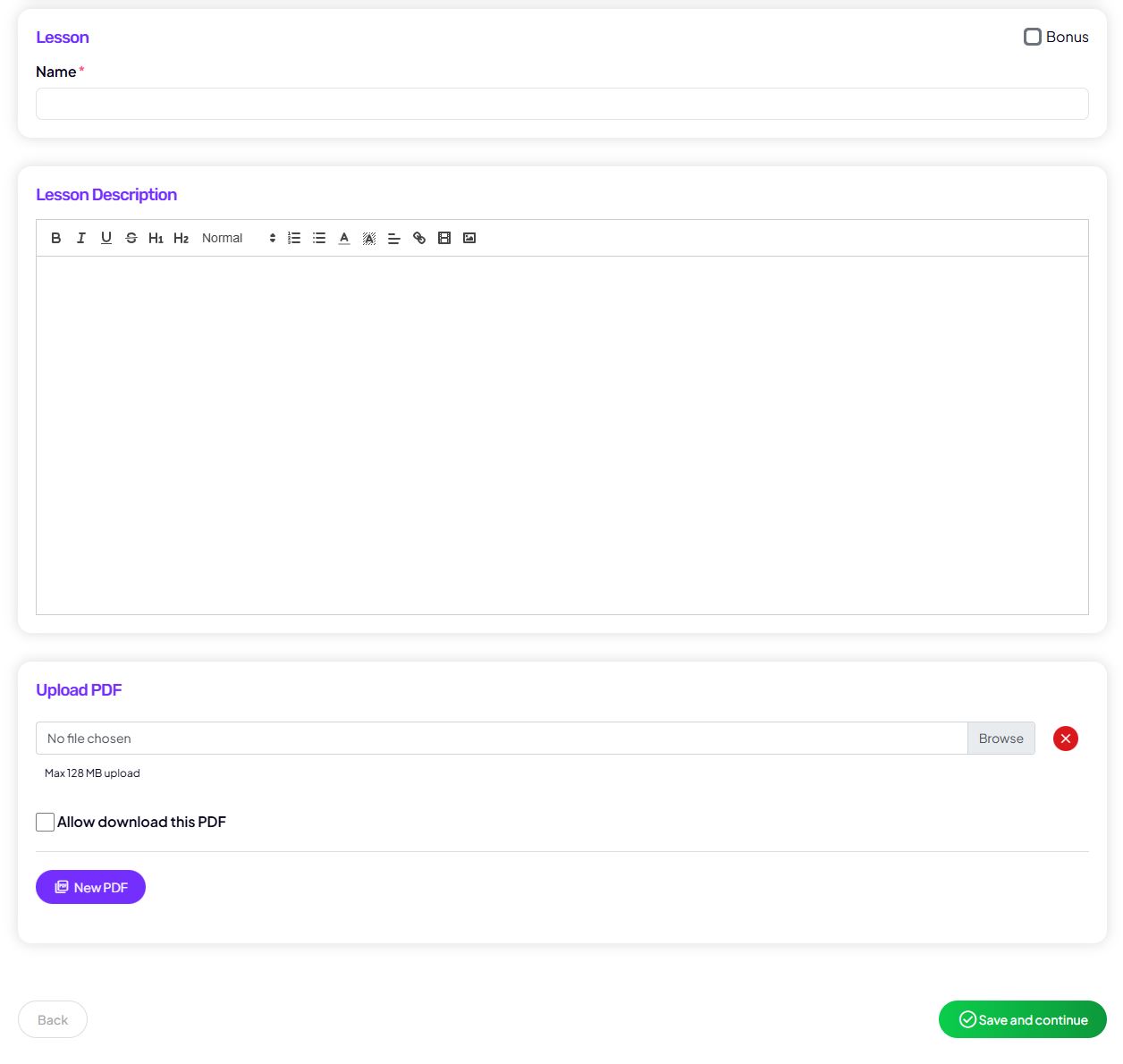
Basic information
Lesson title
The title visible to users in the lesson list and at the top of the content.
Bonus (optional)
You can mark the lesson as a bonus—users will clearly see it as additional content.
Lesson content (lesson description)
In the Lesson description section, you can add an introductory explanation or instructions for using the PDF.
The description is intended for:
- a brief explanation of what the PDF contains,
- instructions on how the user should use it,
- additional context (e.g., when and why to use it).
This section is shown above or alongside the PDF content.
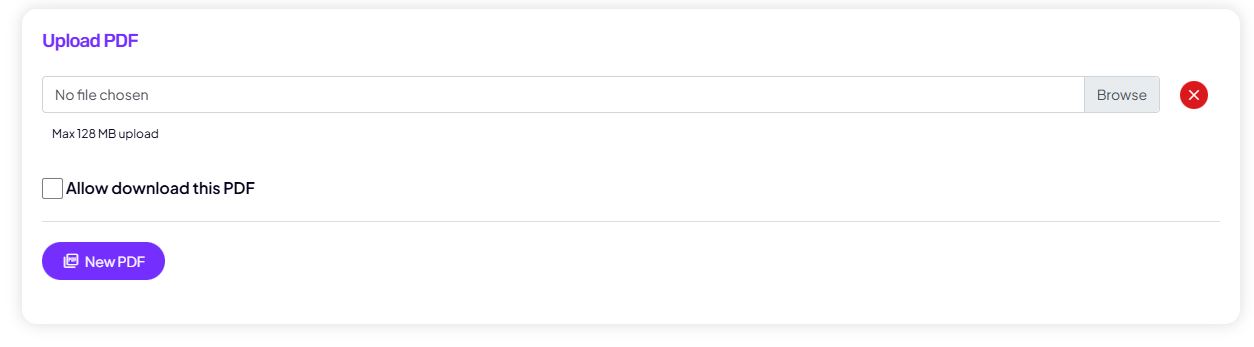
PDF file
In the Upload PDF section:
- upload a PDF file (up to 128 MB),
- choose whether downloading the PDF file is allowed or not.
The PDF is displayed directly in the lesson with page navigation.
It is important that PDF files are not too large, as this can negatively affect the user experience. With slower internet connections, large files may take too long to load, which can prevent users from accessing the content.
User progress
The PDF lesson can be marked as required to continue.
The user completes the lesson by clicking Complete and continue.
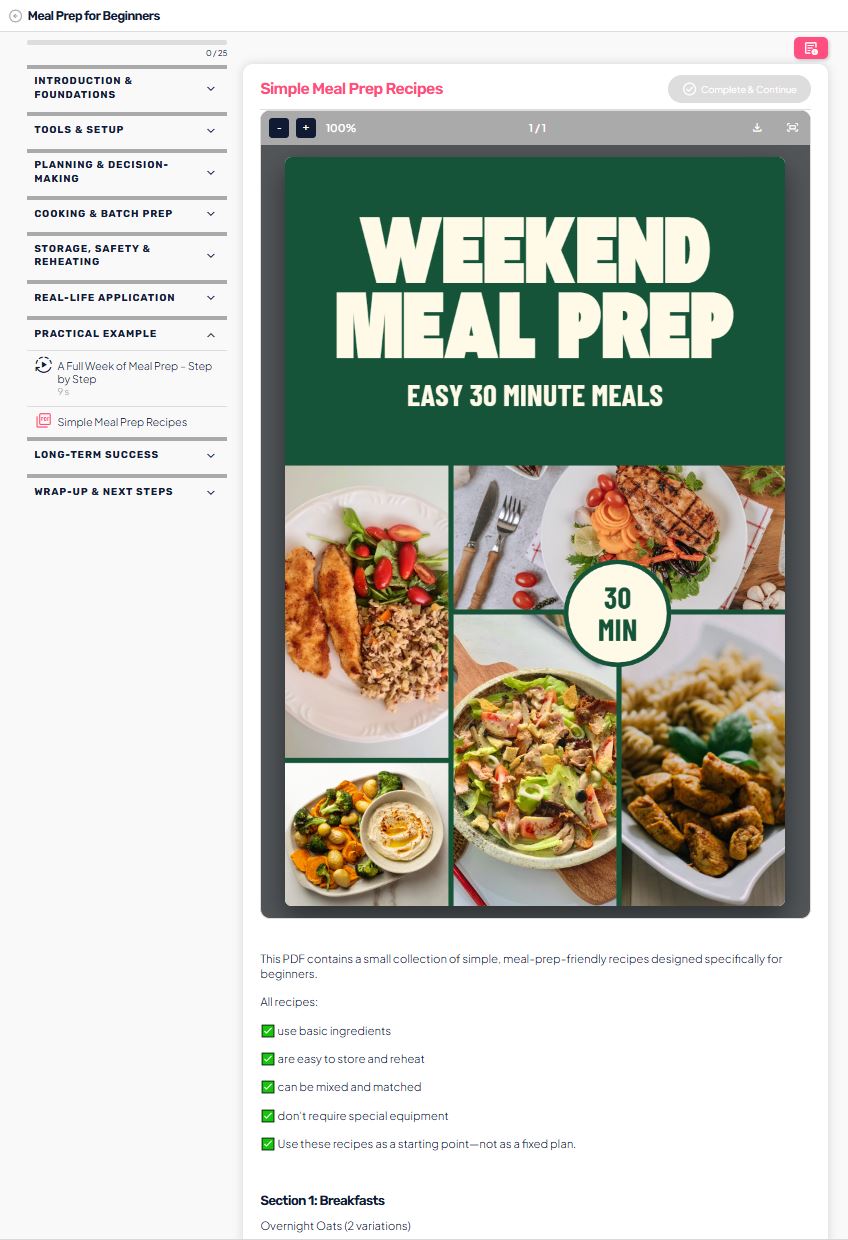
User view
Once the PDF lesson is published:
- the user sees the lesson title within the module structure,
- the PDF is clearly displayed within the app,
- the user can download the PDF if downloads are enabled,
- the lesson completion status is visible,
- the user can leave a comment (if comments are enabled).
This allows the admin to verify that the PDF content is correctly placed and understandable for the end user.
When to use a PDF lesson
A PDF lesson is an excellent choice when you want to:
- add an e-book or manual,
- share recipes or exercise collections,
- offer worksheets or templates,
- provide downloadable materials,
- structure more extensive content in a document.