Adding videos to lessons
In audienced, you can add video content to lessons in two ways:
– by uploading a video file
– by adding a video via a link (URL)
Videos are always added within an individual lesson.
How to add a video to a lesson
- In the course or challenge editor, open the video lesson where you want to add a video.
- In the Select video section, click the Add new video button.
- A window for adding a video will open.

Video upload options
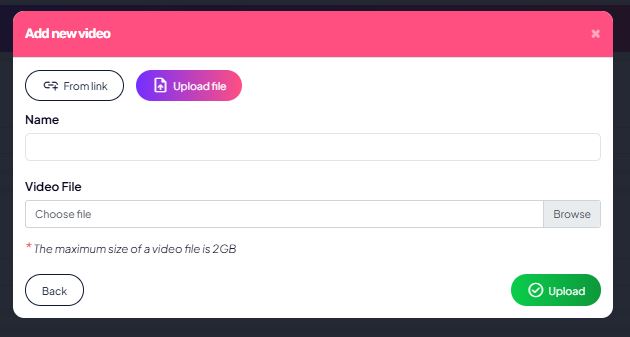
1. Uploading a video file
Use this option if you want to upload the video directly to audienced.
Steps:
- Select Upload file
- Enter the video name
- Select the video file from your computer
- Click Upload
Important:
- The maximum video file size is 2 GB
- After uploading, the video is processed and saved to your video library
- The video will then also be available for use in other lessons
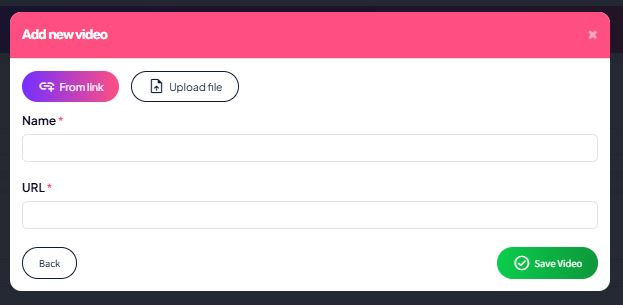
2. Adding a video via a link (URL)
Use this option if your video is already hosted elsewhere (e.g., Vimeo, YouTube).
Steps:
- Select Via link
- Enter the video name
- Paste the video URL
- Click Save video
Selecting a video in a lesson
If the video has already been uploaded to your video library:
- It will appear in the Videos dropdown list
- Select the desired video
- The video will automatically be linked to the lesson

A single lesson can contain multiple videos, and you can also use the lesson description, PDFs, or other content types.
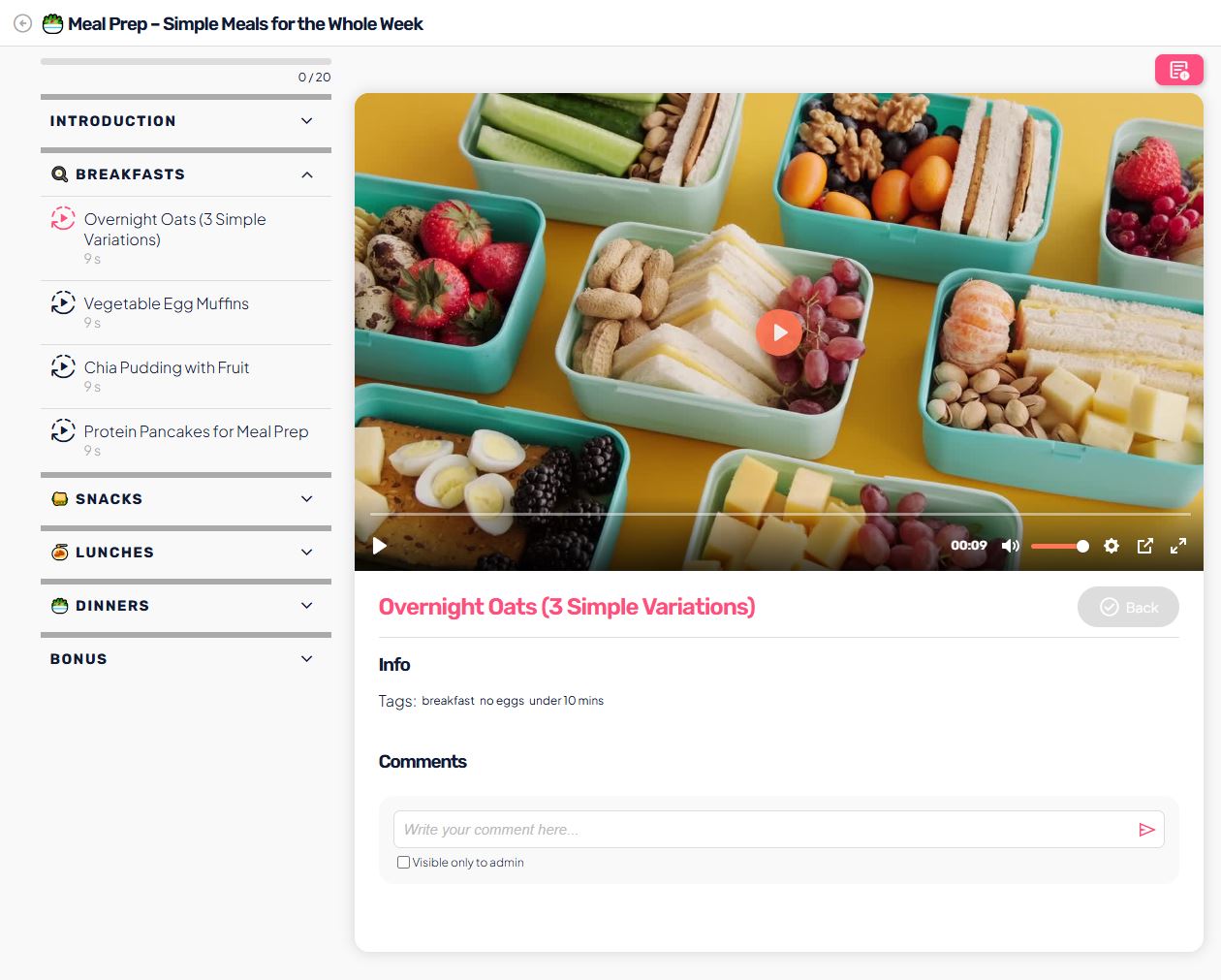
How users see the video (user view)
In the lesson, the user:
- sees the video player at the top of the content
- can play the video directly in the app
- after watching, completes the lesson using the Complete & continue button
Helpful tips
- Give the video a clear, short name (e.g., Challenge introduction, How meal prep works)
- For longer content, split it into several shorter lessons
- You can replace or update a video at any time without affecting users
- Before publishing the course, use Preview to check how the video looks for the user
- If you already have multiple videos prepared, we recommend uploading them to the video library first, and then selecting them within individual lessons. This way, you don’t have to wait inside each lesson for the video to upload to the platform.