Light / Dark Mode
Audienced supports both Light and Dark display modes in the user-facing part of the application (user view).
This setting is intended for end users and is not available in the admin dashboard (admin view).
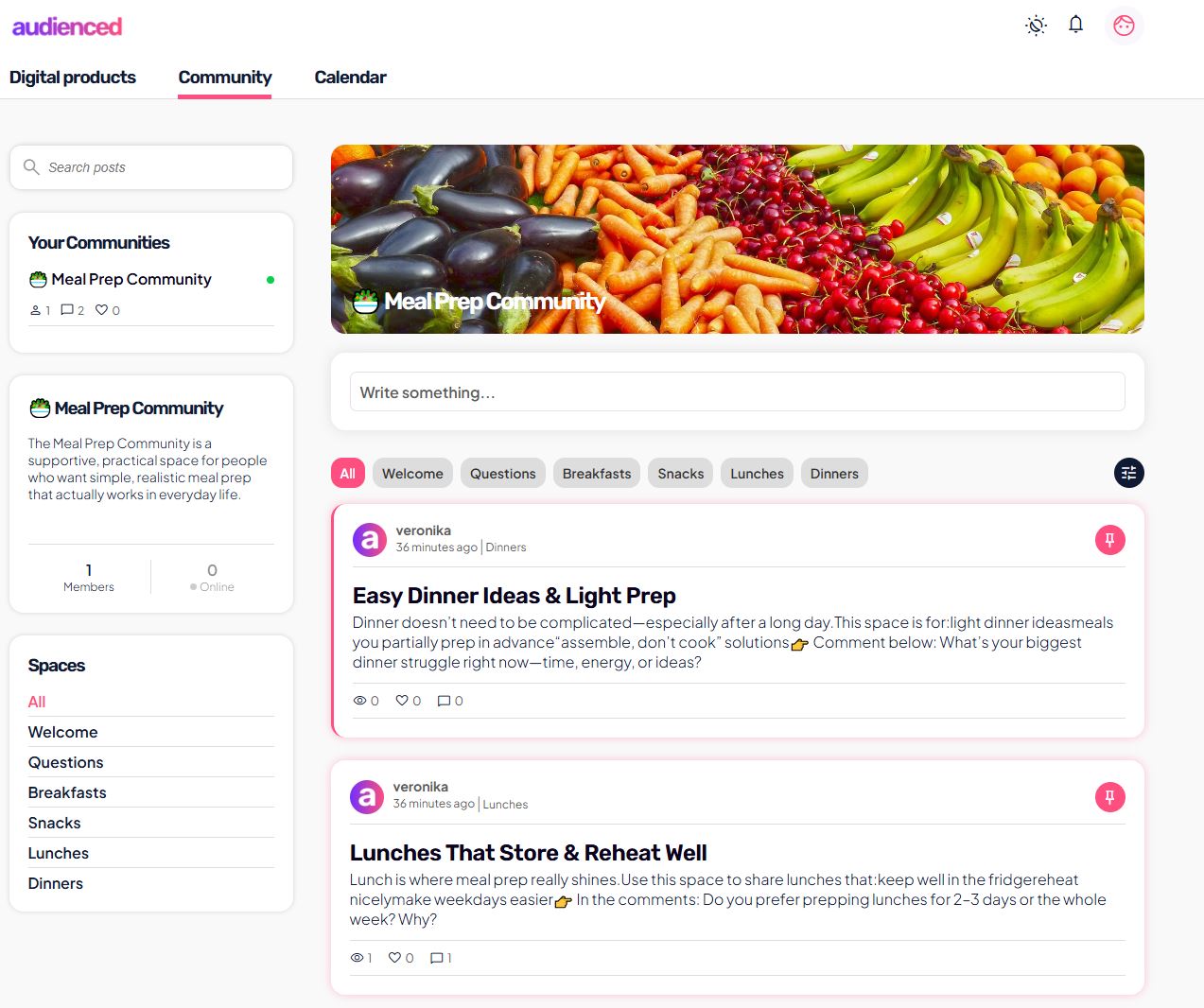
Where Light / Dark mode is available
Light / Dark mode is available:
- in the user interface of the application,
- where users access:
- digital products,
- the community,
- the calendar and content.
It is not available:
- in the admin area,
- in sections for editing the application, settings, products, or integrations.
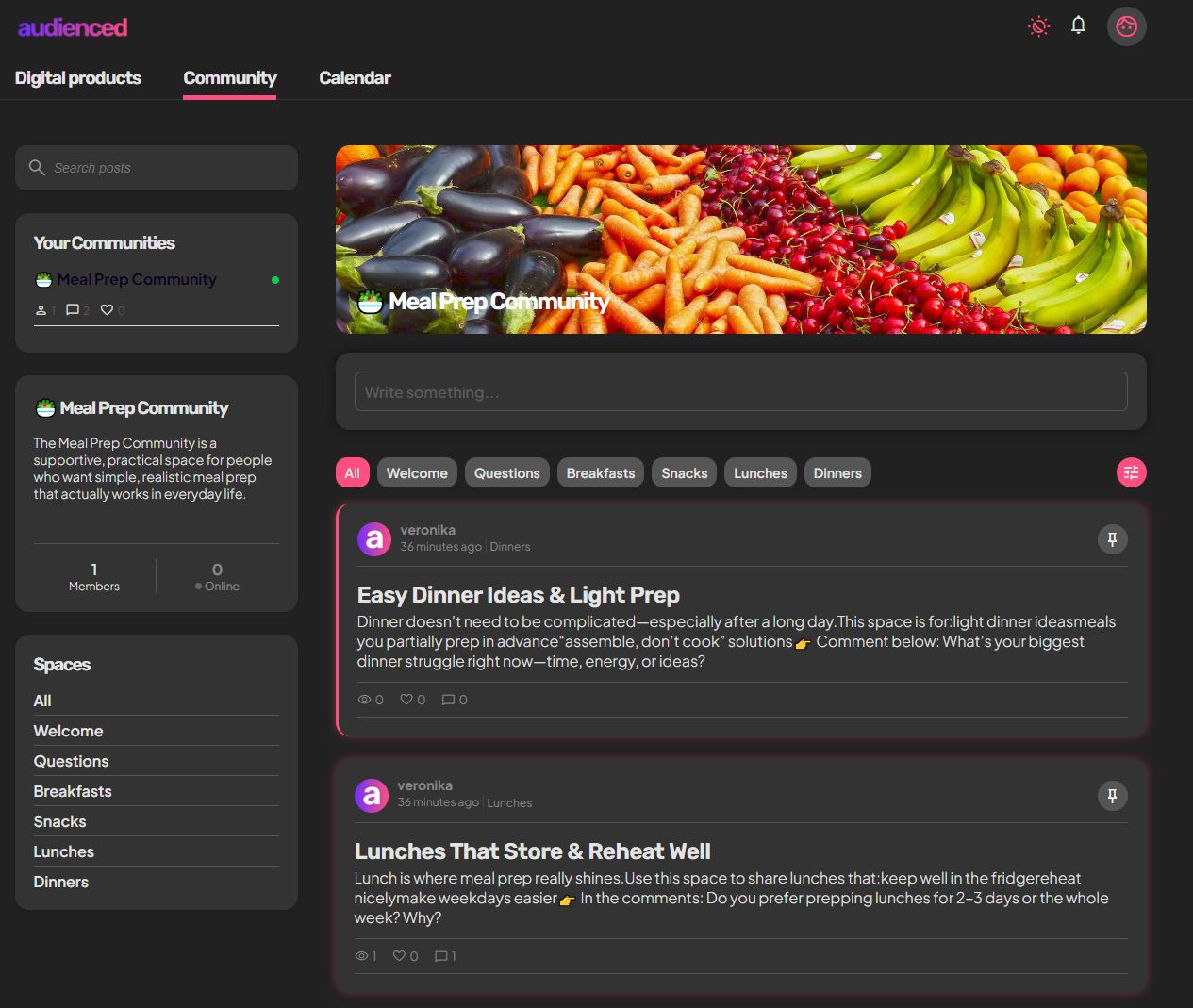
How users switch between Light and Dark mode
Users can switch the display mode:
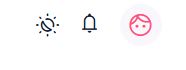
- via the Light / Dark mode icon in the top area of the application,
- the setting is applied immediately.
The selection affects only:
- the visual appearance of the interface,
- user comfort (e.g. in low-light environments).
How the setting works
- Light / Dark mode is a personal user setting.
- Each user can choose the mode that suits them best.
- The setting does not affect other users.
- It does not affect content, functionality, or access.
What admins should know
As an admin:
- you cannot set Light / Dark mode for users,
- you cannot enforce a specific display mode,
- this feature is part of the user experience (UX), not brand settings.
The visual identity (colors, logo) remains the same regardless of the selected display mode.
Summary
- Light / Dark mode is available only in user view,
- it is not part of the admin dashboard,
- each user chooses their own mode,
- the feature is designed to improve the user experience.