Quiz
A quiz lesson in audienced is designed to test understanding of the content, reinforce knowledge, and encourage active thinking. It serves as a practical check of whether users understand the key concepts of a program, challenge, or course.
You can use a quiz as a module conclusion, a knowledge check after a content block, or as a requirement to proceed to the next lesson.
How to create a quiz lesson
- In the Modules and lessons section, click Add lesson within the selected module.
- Select the lesson type Quiz.
- Proceed to quiz editing and adding questions.
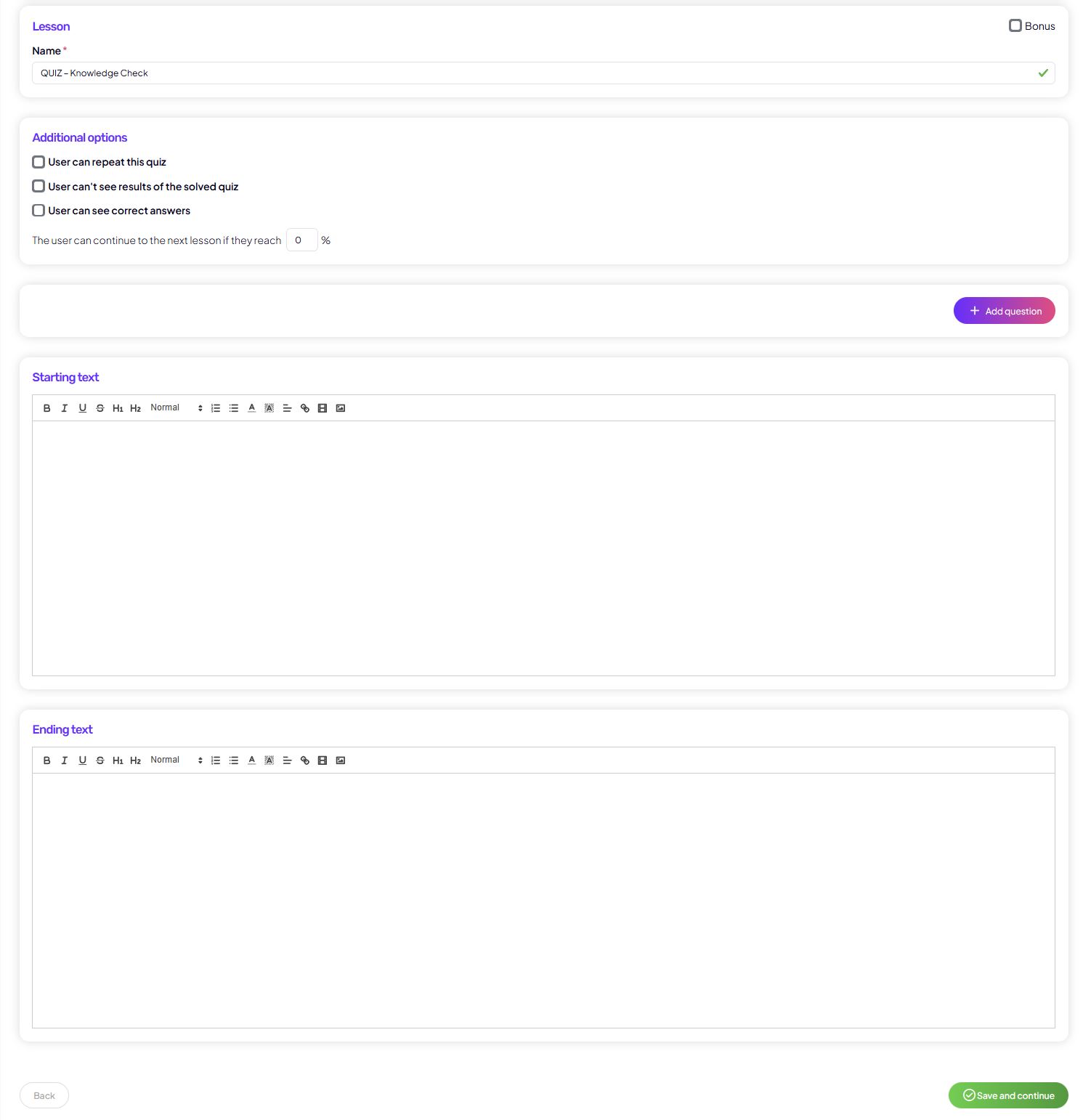
Quiz lesson settings
When creating a quiz, you configure the following elements:
Basic details
Lesson title
The title users see in the lesson list and at the top of the quiz.
Bonus (optional)
You can mark the quiz as bonus content if it is not a mandatory part of the program.
Quiz questions
Each quiz consists of any number of questions.
For each question, you can set:
- Question text
- Question type, for example:
- A / B / C (single correct answer)
- A / B / C (multiple correct answers)
- Ability to mark the correct answer(s)
- Whether the question is required or optional
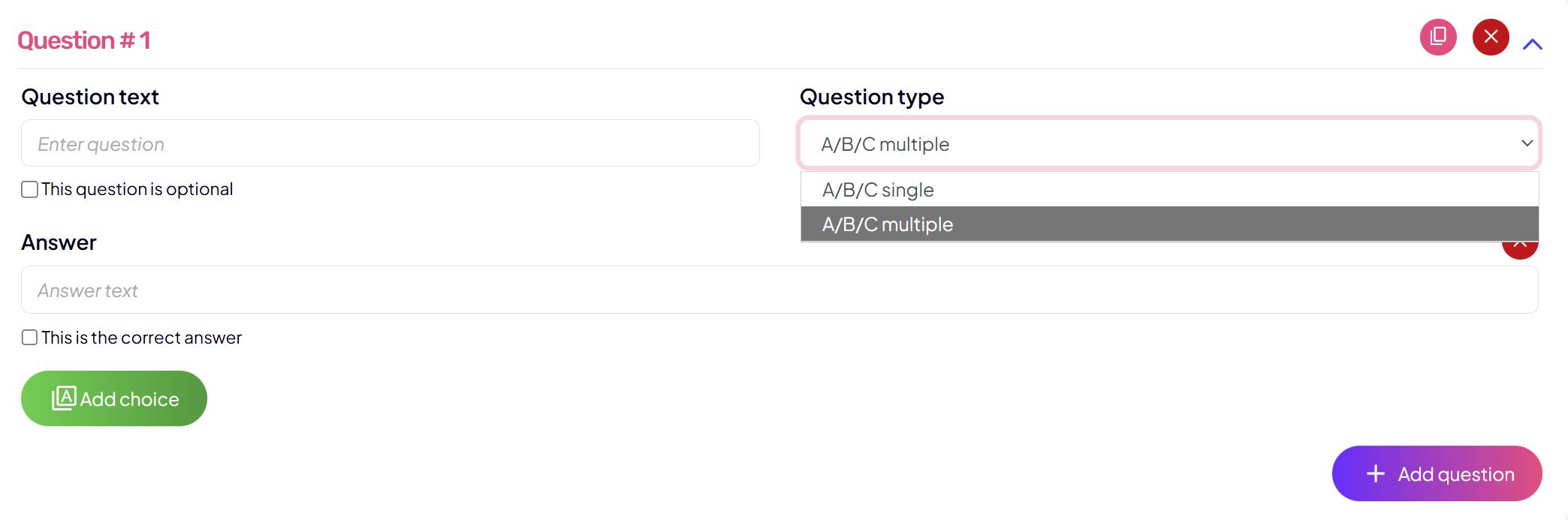
You can:
- edit questions
- duplicate questions
- delete questions
- reorder them freely
Additional quiz options
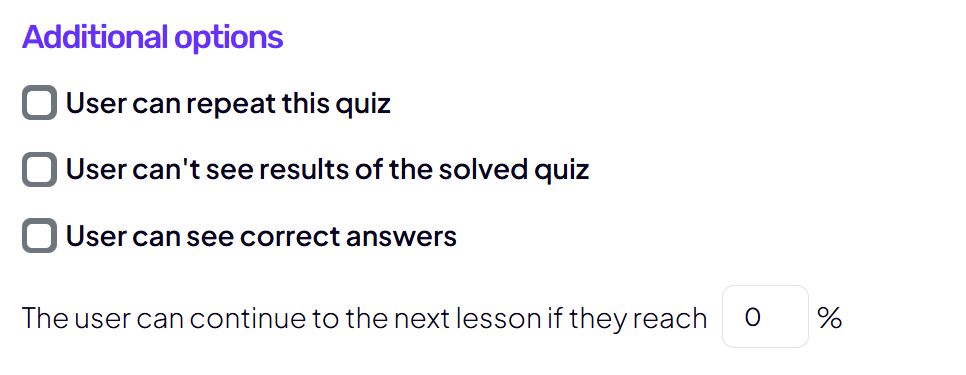
You can further configure:
- whether the user can retake the quiz
- whether the user can see the result
- whether the user can see the correct answers
- the minimum passing percentage required to continue to the next lesson
This gives you full control over the learning flow.
Introductory and final text
Introductory text
Shown to the user before starting the quiz. Use it for:
- explaining the purpose of the quiz
- brief instructions
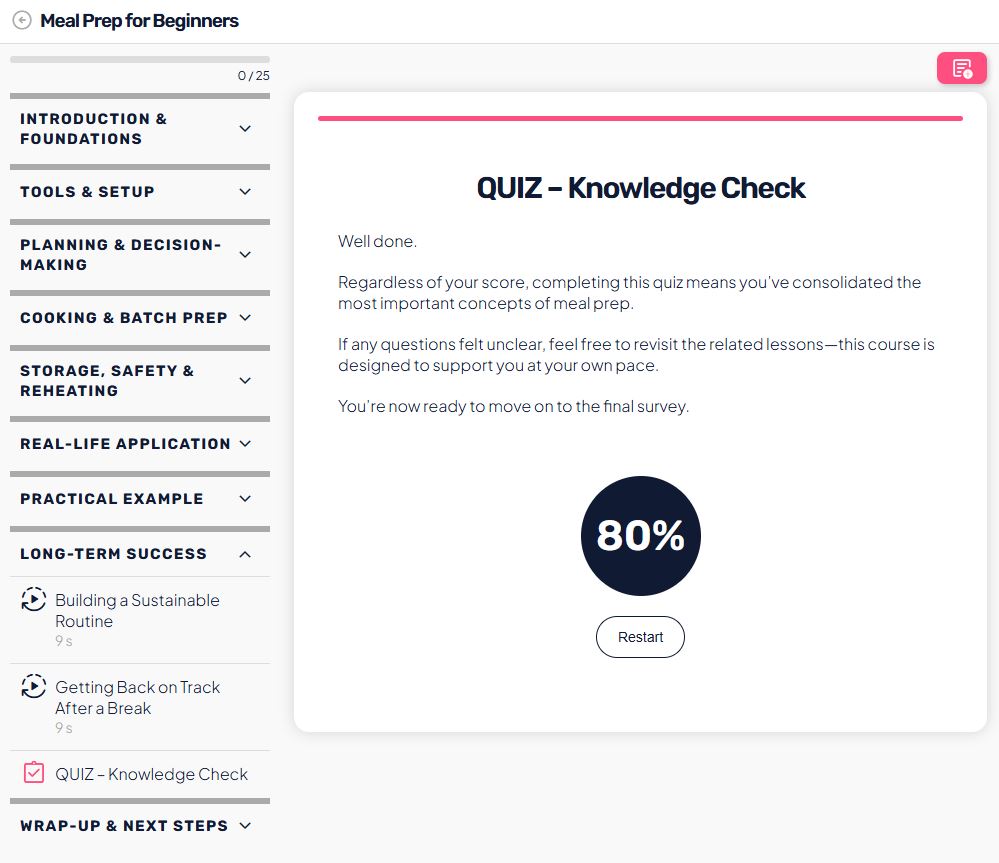
Final text
Displayed after completing the quiz, regardless of the result.
Ideal for:
- a motivational message
- explaining next steps
- inviting the user to retry or continue the program
User progression
You can set the quiz as a progression requirement:
- the user must complete the quiz
- or reach a defined success percentage
- or simply review the quiz (for optional checks)
This structures learning and prevents skipping key content.
Quiz results (admin view)
As users complete the quiz, audienced provides a clear overview of results:
- a list of users who completed the quiz
- completion date
- overall score in percentages
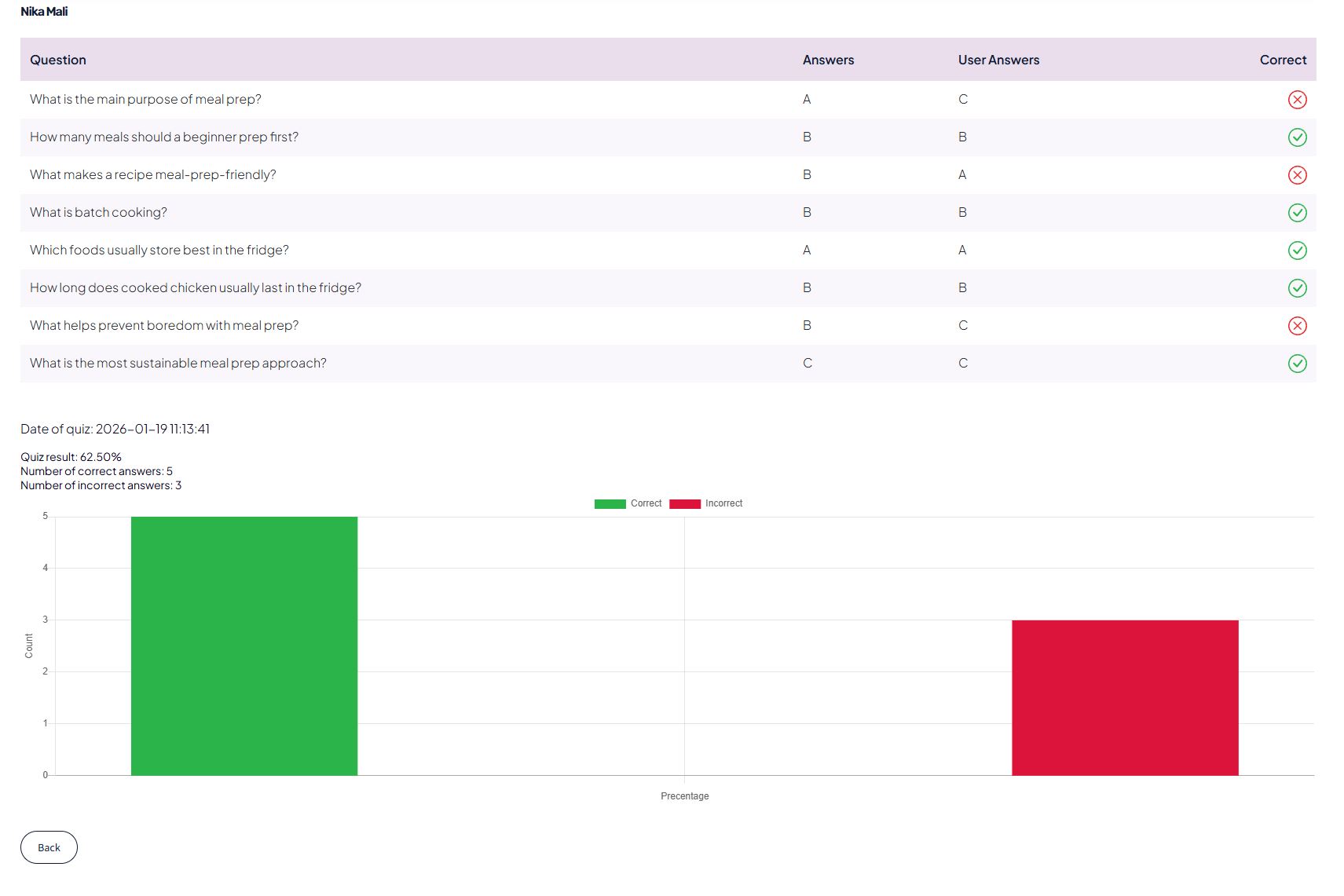
- breakdown of correct and incorrect answers by question
- visual performance charts
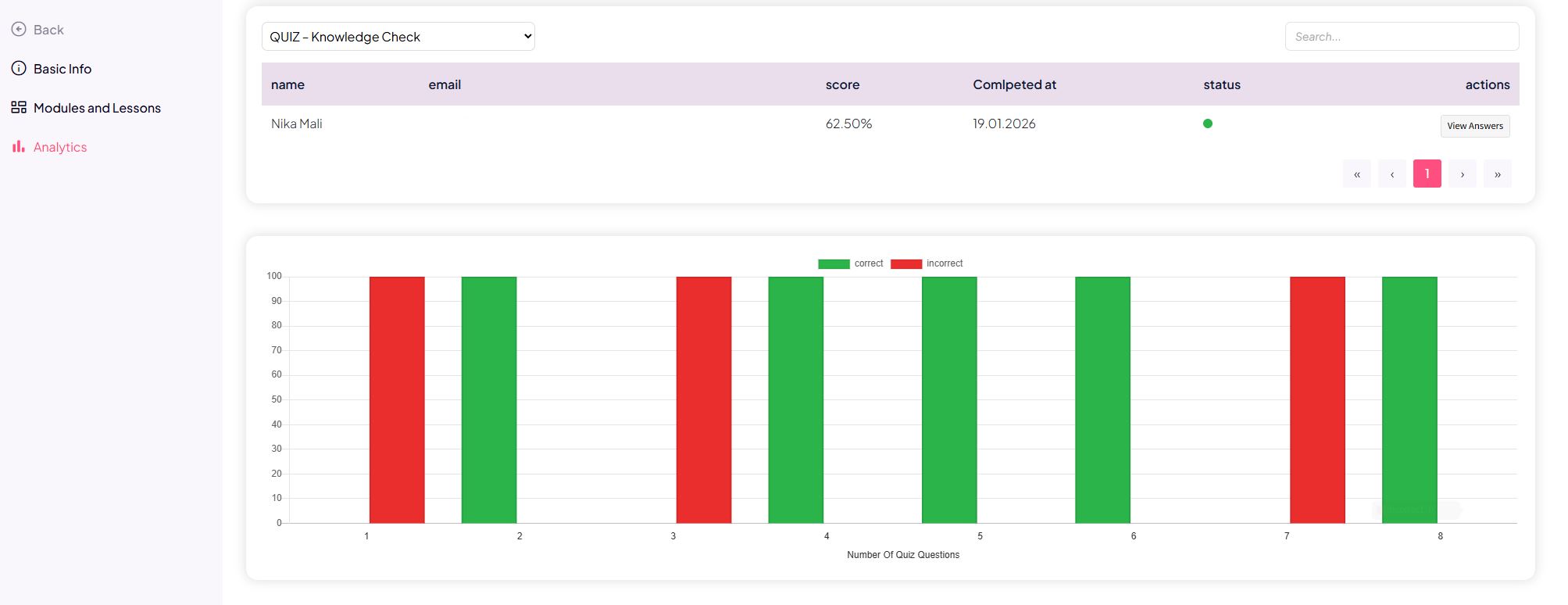
This helps you quickly identify:
- which questions are problematic
- where most users make mistakes
- whether the content is clearly explained
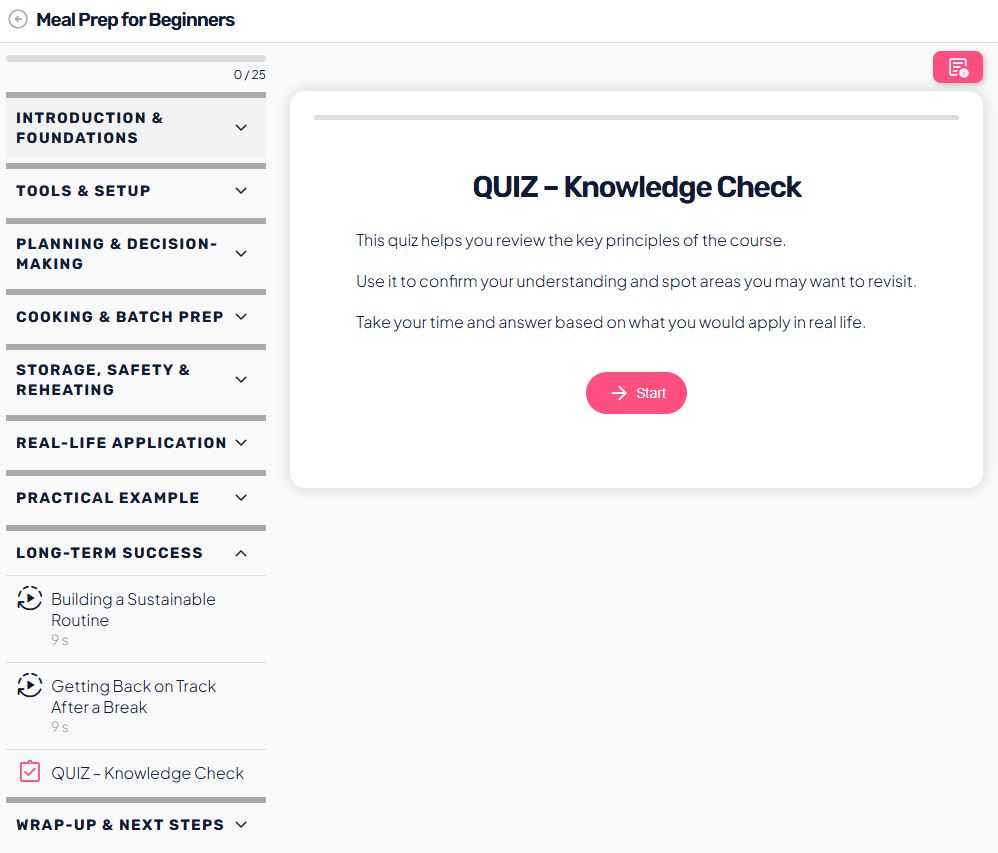
User view
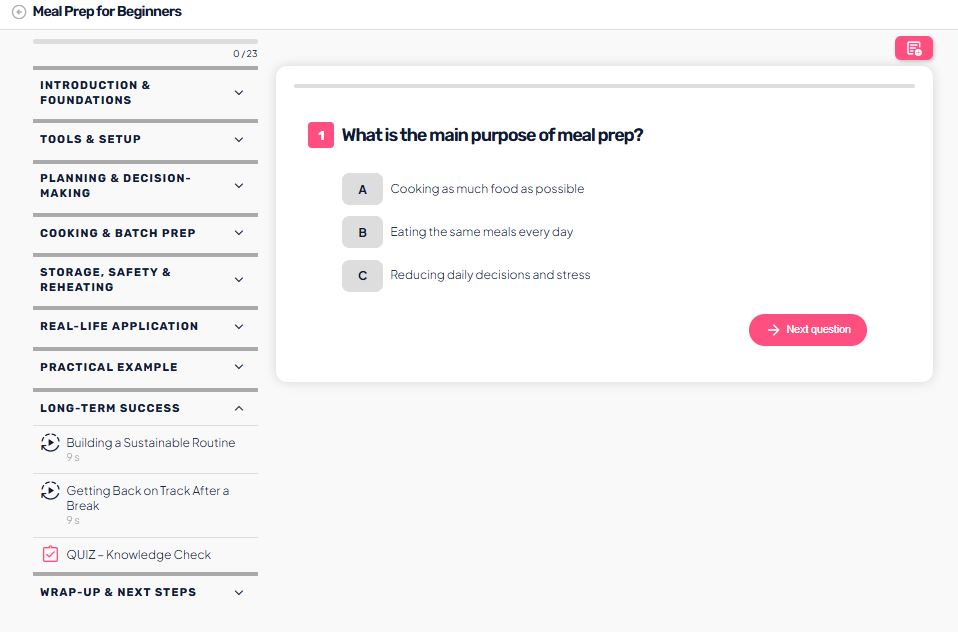
Once the quiz is published:
- the user sees the introductory text and a Start button
- questions are displayed clearly, one by one
- the user clearly sees when the quiz is completed
- after completion, the user sees their result (if enabled)
- the quiz can be retaken (if allowed)
This helps the admin assess whether the quiz is:
- clear enough
- appropriately challenging
- aligned with the preceding lesson content