Text Lesson
A text lesson in Audienced is designed for content where you want to provide users with written instructions, explanations, lists, recipes, summaries, or in-depth theory—without video or audio. It’s ideal for supporting content, explanations between modules, or as a standalone lesson.
How to create a text lesson
- In the Modules and lessons section, click Add lesson inside the selected module.
- Select the lesson type Text.
- Continue to the lesson content editor.
Text lesson settings
When creating a text lesson, you can set the following elements:
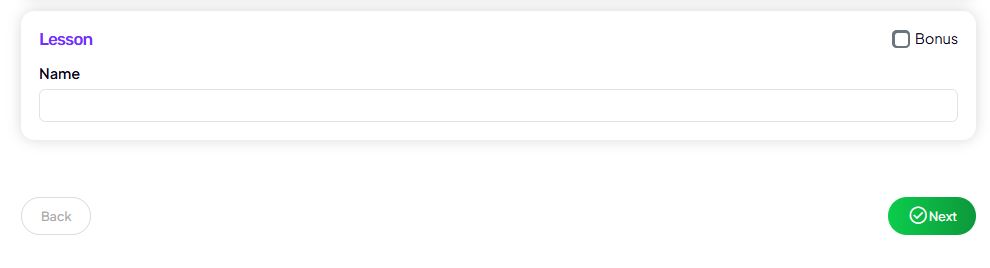
Basic information
- Lesson title
The title users see in the lesson list and at the top of the lesson. - Bonus (optional)
You can mark the lesson as a bonus—users will clearly see it as additional content.
Lesson content (lesson description)
In the Lesson description section, you enter the main text.
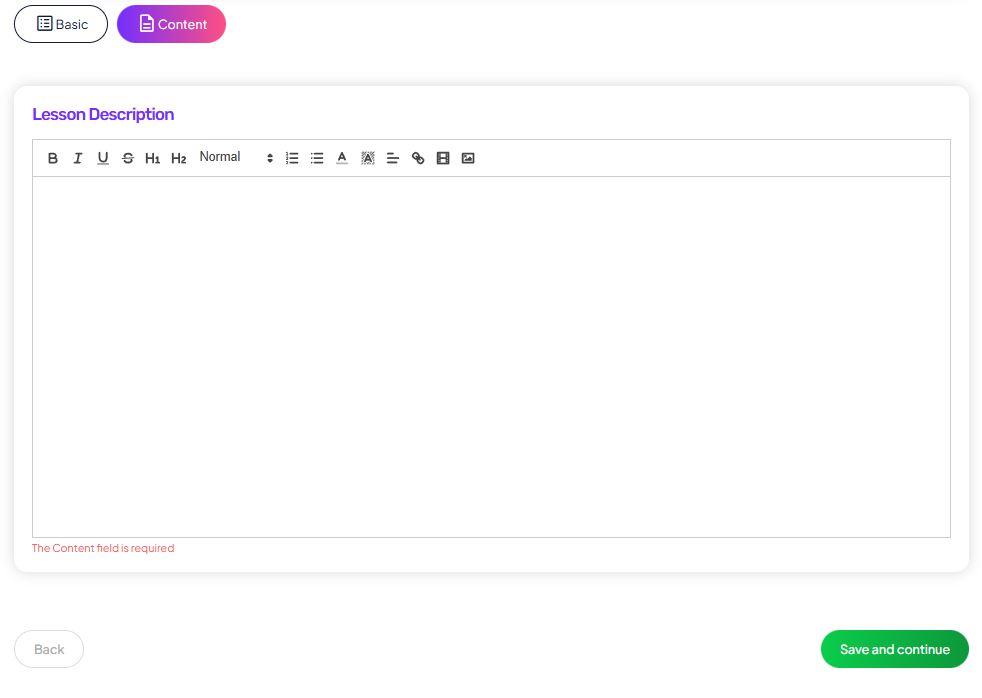
The editor supports:
- text formatting (headings, bold, italics),
- lists (bulleted or numbered),
- adding links,
- inserting images,
- clear structuring of longer content.
This is the main lesson content users read inside the platform.
User progress
- A text lesson can be marked as required to continue.
- The user completes it by clicking Complete and continue.
- This way you can control the learning flow even without video or a quiz.
User view
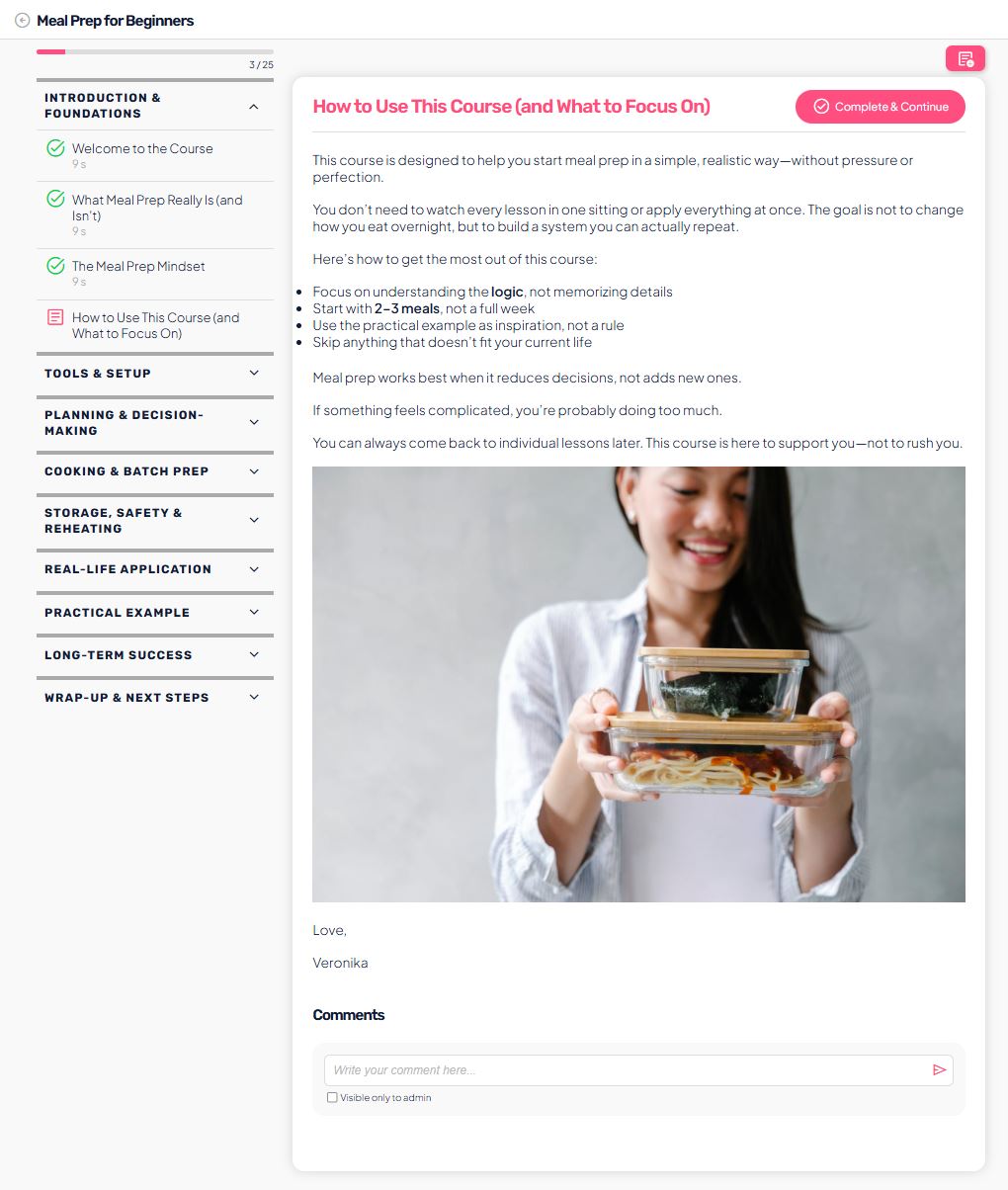
When a text lesson is published:
- the user sees the lesson title in the module structure,
- the content is displayed clearly, without distractions,
- they can clearly see when the lesson is completed,
- they can leave a comment (if comments are enabled).
When to use a text lesson
A text lesson is a great choice when you want to:
- explain theory or background,
- provide step-by-step instructions,
- add recipes or lists,
- prepare a weekly or module summary,
- add supporting content alongside videos or challenges.