Event
An audienced event is designed for organizing live or online events with a clearly defined date, time, and location. It is suitable for Zoom calls, workshops, Q&A sessions, webinars, live trainings, or in-person events.
Events are automatically displayed to users in the calendar, allowing them a quick overview of all upcoming activities.
Access to events
You create events in the side menu under Events.

Each event can be:
- shown to users of a specific course,
- shown to members of a specific community,
- or both at the same time.
This allows you to precisely define who has access to each event.
Basic event information
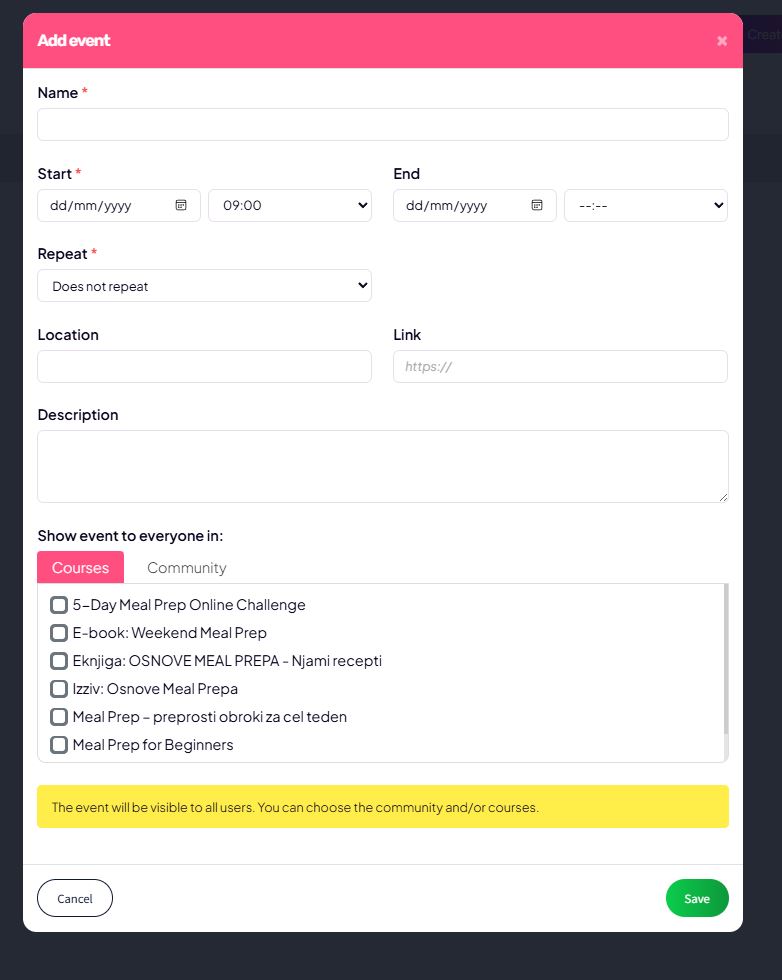
When creating an event, you set:
- Event name
(e.g. Meal Prep Monday – Live Q&A) - Event start
Start date and time - Event end (optional)
End date and time - Location
(e.g. Zoom, in person, Ljubljana …) - Link
(e.g. Zoom link, Google Meet, website) - Event description
Purpose, agenda, or additional instructions for participants
This information is shown to users when they click on an event in the calendar.
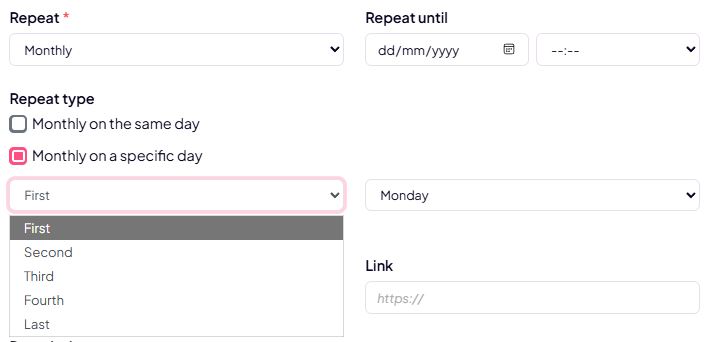
Event recurrence
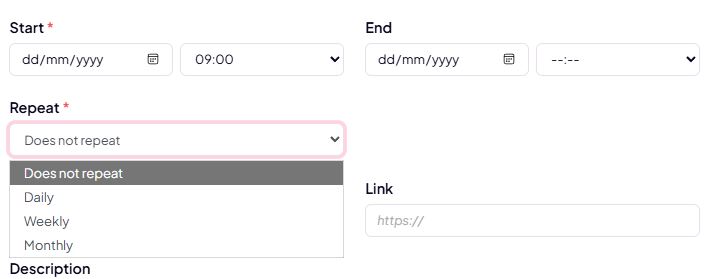
You can set an event as:
- One-time event
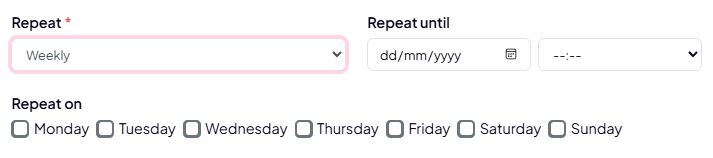
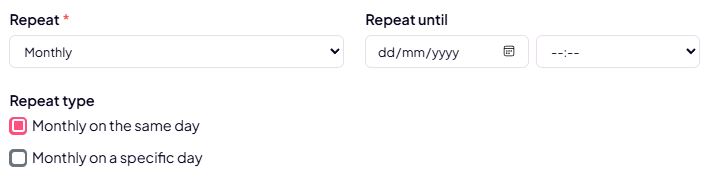
- Recurring event, for example:
- weekly (e.g. every Monday),
- monthly,
- or at another selected interval.
Recurring events are automatically displayed in the calendar for the entire period.

Event visibility
For each event, you define who can see it:
- Courses
You select one or more courses whose participants will see the event. - Communities
You select communities whose members have access to the event.
The event is visible only to users who have access to the selected content.
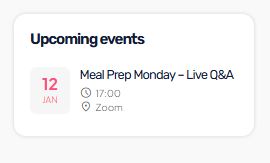
How users see the event (user view)
Users see events in the Calendar tab.
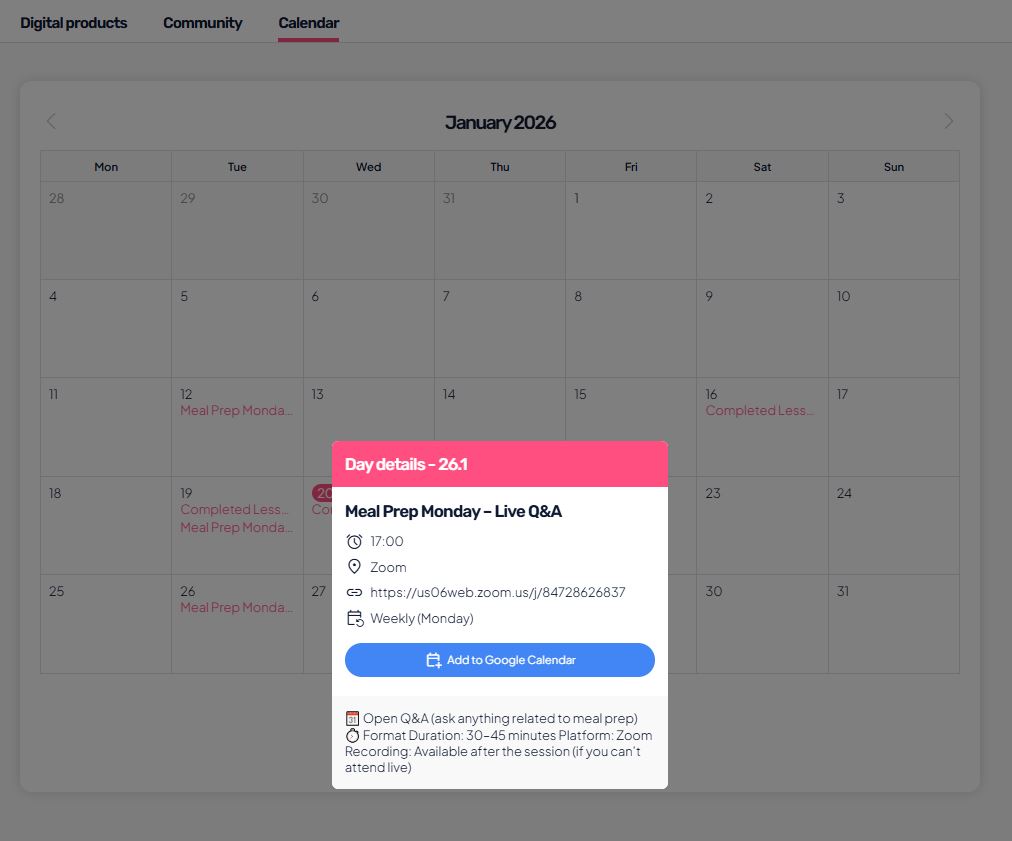
In the calendar, the user:
- sees all events they have access to,
- can click on an event to open the details,
- sees the date, time, location, description, and link,
- can add the event to Google Calendar with one click.
The user does not see options to edit or delete events.
Event management
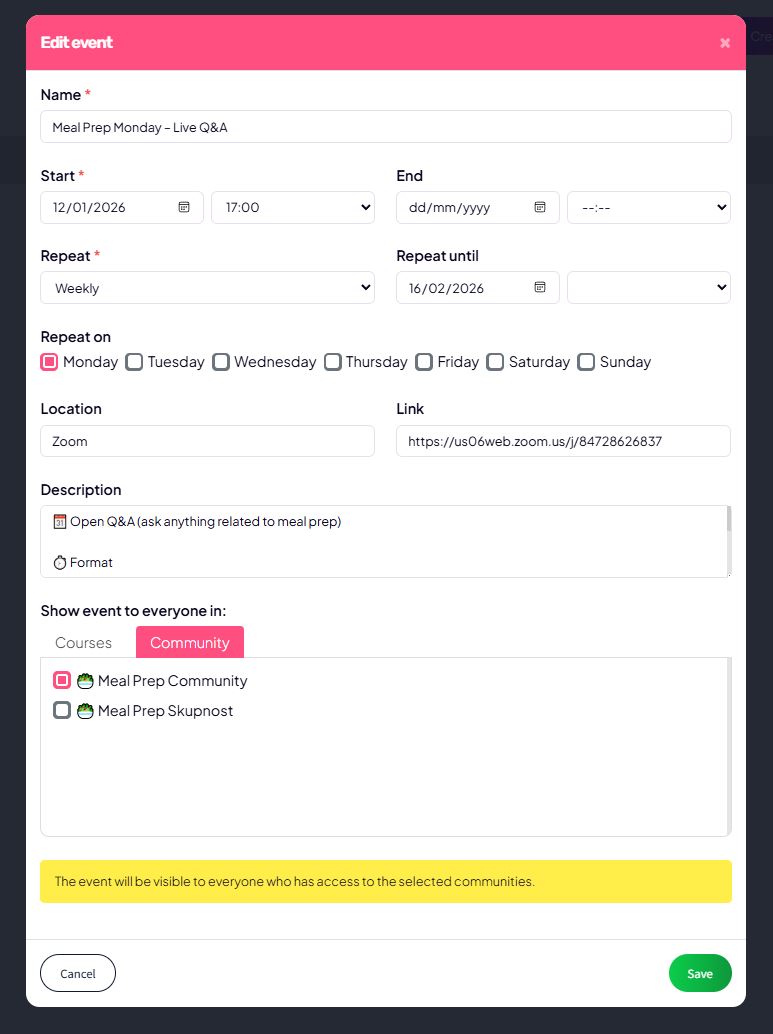
As an admin, you can:
- edit existing events,
- delete events,
- change visibility (courses / communities),
- manage recurrence and time slots.
All events are collected in a list under Events, where you have a quick overview of:
- name,
- start time,
- location,
- recurrence,
- visibility.
Summary
Events in audienced enable:
- a centralized calendar for all live activities,
- clear access separation by courses and communities,
- a professional user experience without additional tools.
They are an ideal addition to courses, challenges, and communities where you want to regularly connect with users live.