Customization
In audienced, you can customize the application to match your brand, communication tone, and the way you work with users. All personalization settings are available in the Edit my application section.
We recommend completing this step before you start creating and selling products, as it affects the entire user experience.
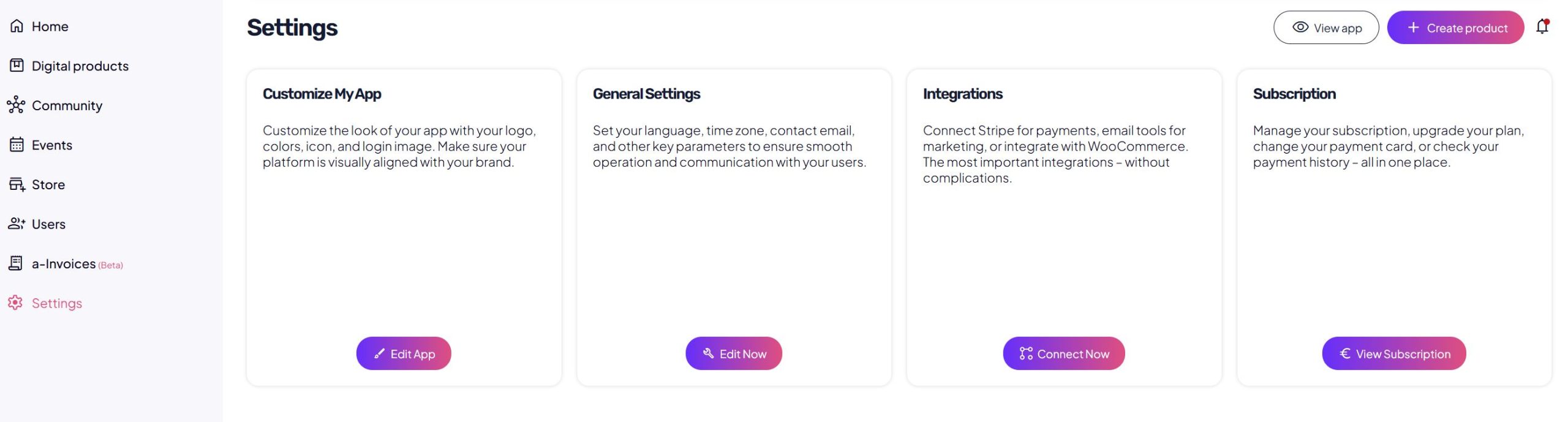
Where to find personalization
In the admin panel under Settings, you will find:
Edit my application
There are three tabs available:
- Design application
- Edit email
- Important information
Design application
In this tab, you define the visual appearance of the application.
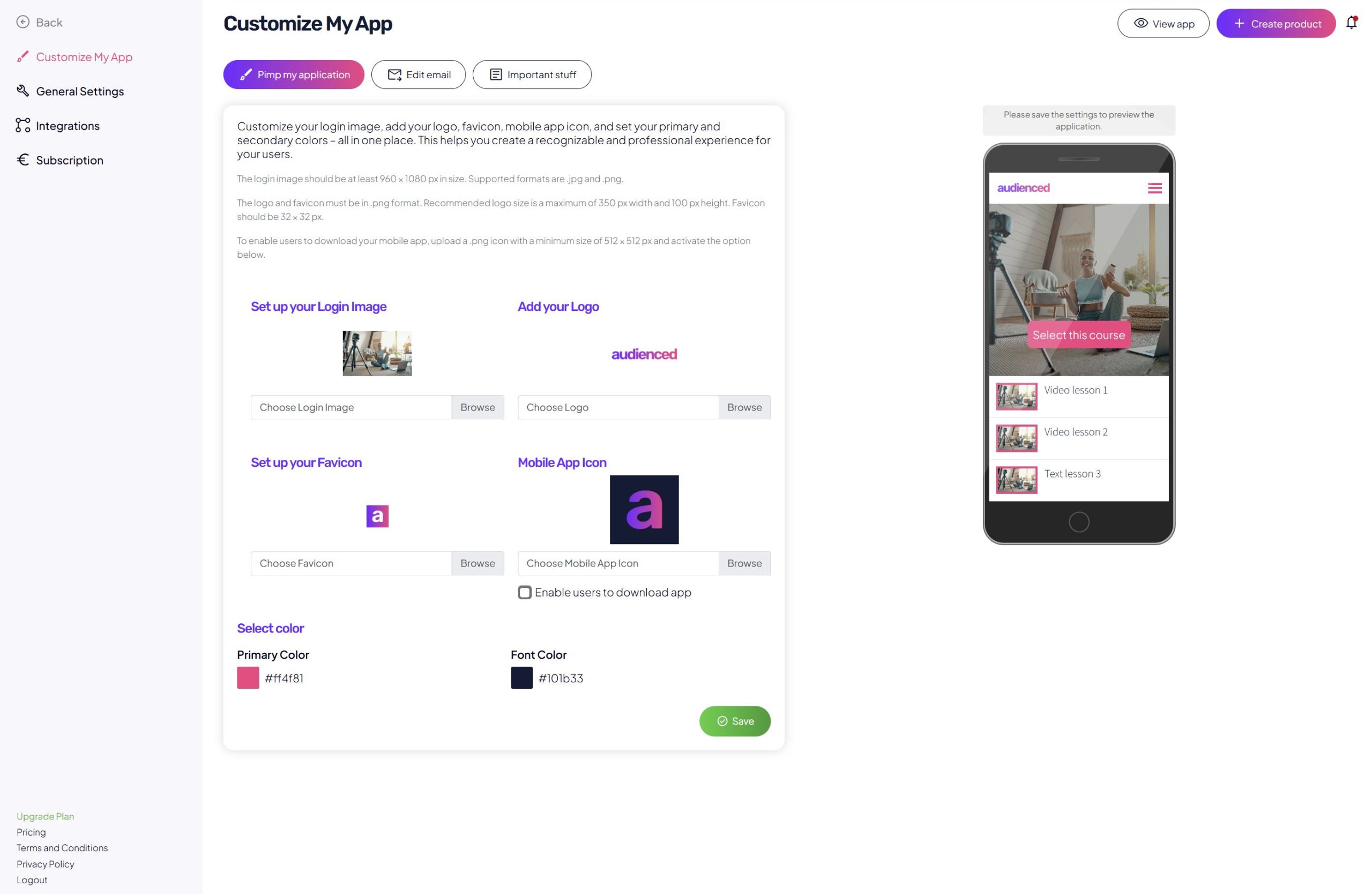
Login image
- Displayed on the application login page.
- Recommended size: 960 × 1080 px.
- Supported formats: JPG, PNG.
Logo
- Displayed in the application and in emails.
- Recommended size: up to 350 px width, up to 100 px height.
- Format: PNG.
Favicon
- The icon shown in the browser tab.
- Recommended size: 32 × 32 px.
- Format: PNG.
Mobile app icon
- Used when adding the application to a mobile device home screen.
- Recommended size: 512 × 512 px.
- Format: PNG.
- You can optionally enable app download for users.
Colors
- Primary color: used for buttons and highlights.
- Text color: used for headings and body text.
After completing your changes, click Save.
Edit email
In this tab, you edit the content of system emails sent to your users.
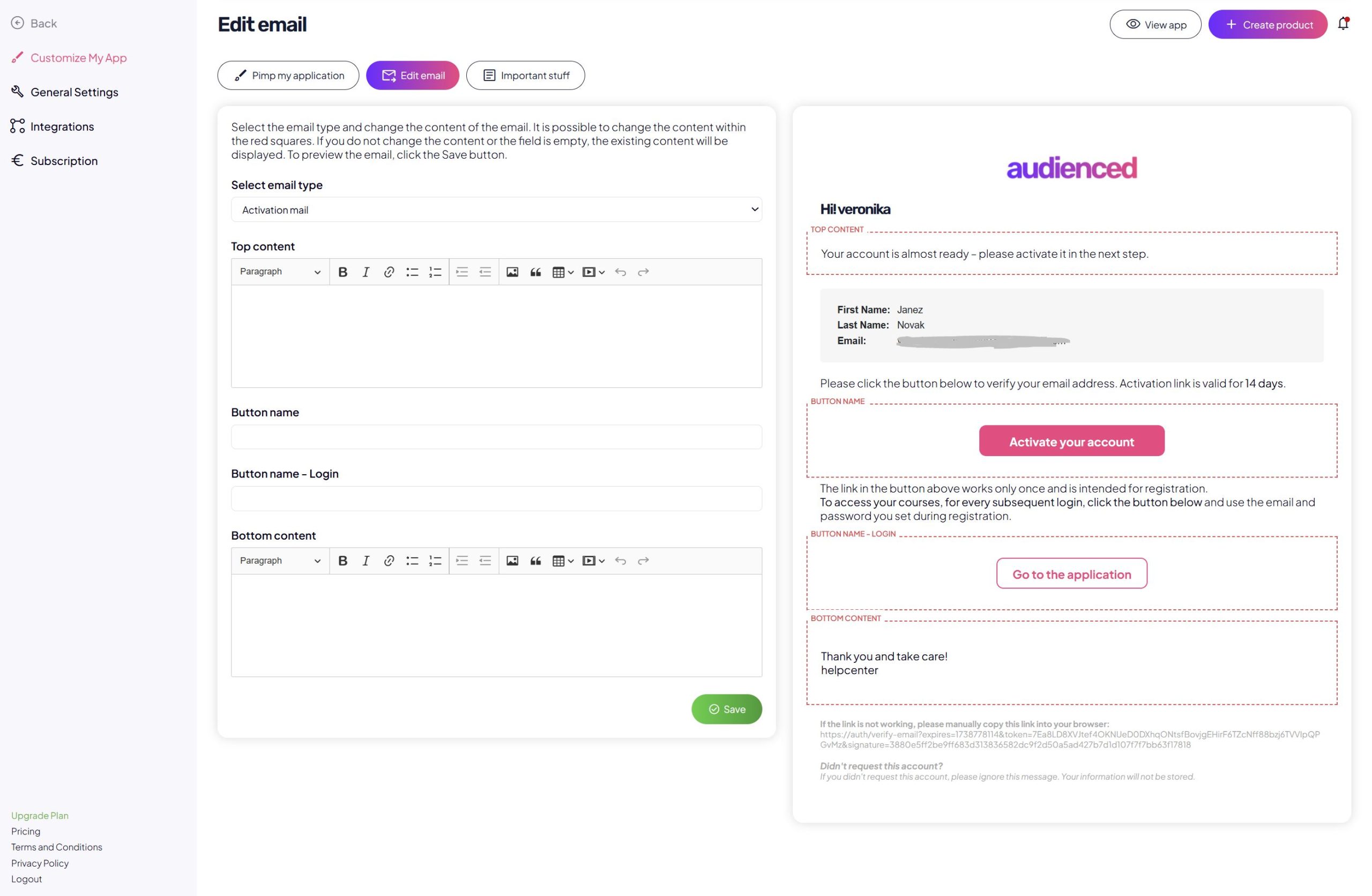
Select email type
Select the email type from the dropdown (e.g. account activation).
Edit content
- Top content – introductory text of the email.
- Button label – text on the main CTA button.
- Button label – login – text on the login button.
- Bottom content – closing section of the email.
You can adapt the content to your communication tone. If you leave a field empty, the default content will be used.
Click Save to preview and store your changes.
Important information
In this tab, you manage all static content that users see in the application.
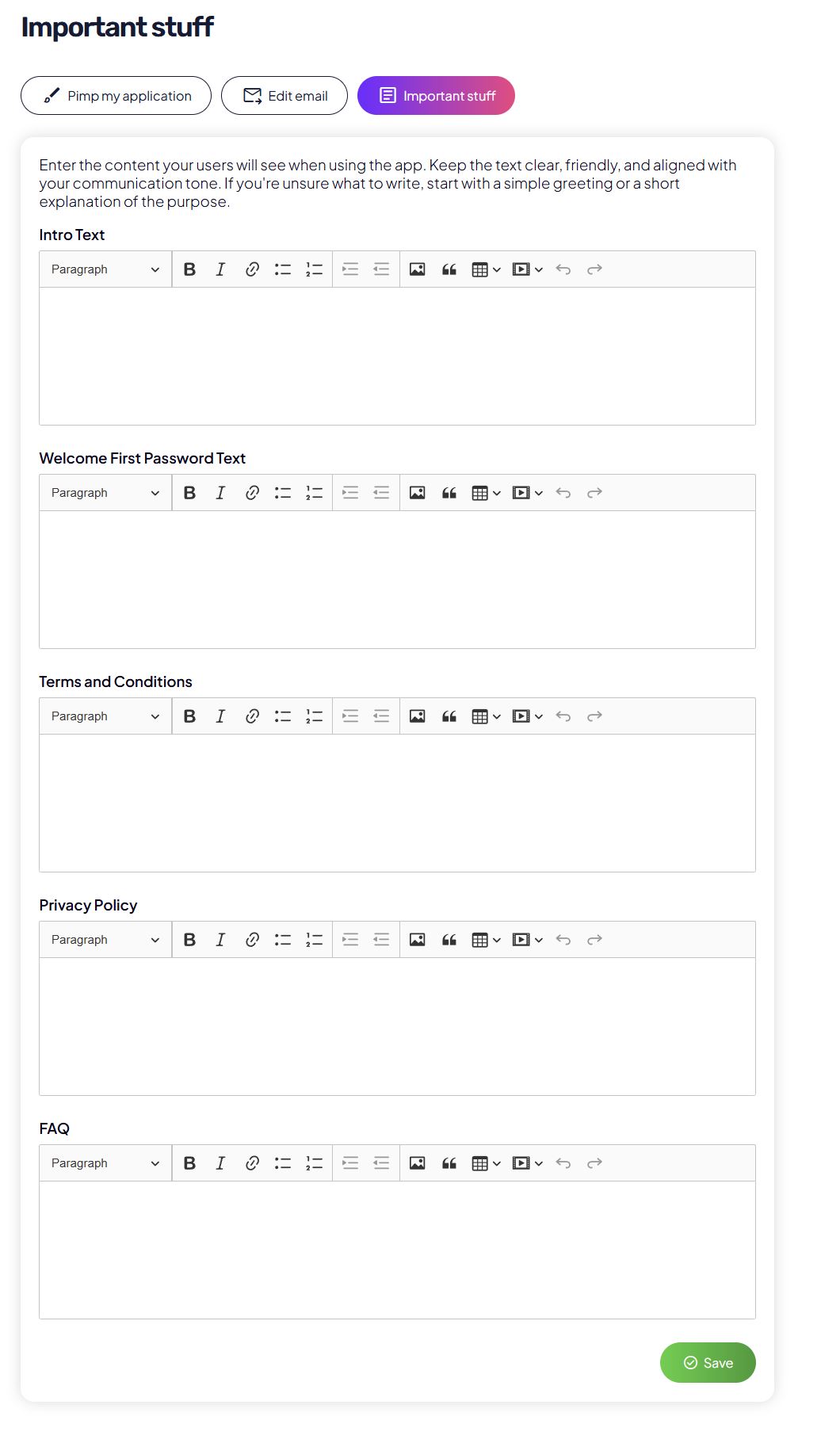
Introductory content
- Text displayed to users when they use the application.
- Intended for a short description or welcome message.
First password setup – message
- Text that guides users through setting their password on first login.
Terms of use
- Enter your terms and conditions or application usage terms.
Privacy policy
- Enter your privacy policy in accordance with regulations (GDPR).
Frequently Asked Questions (FAQ)
- Add the most common questions and answers for users.
- This content is visible directly in the application.
After each change, click Save.
Recommendation
For the best experience, we recommend:
- first setting up the visual appearance of the application,
- then customizing email communication,
- and finally adding legal content and FAQs.